How to Enter Scores and Manage Game Day
You have players that have opted in and you would like to start your game day. This article will show you how to manage your game day.
First log in to Pickleball.com
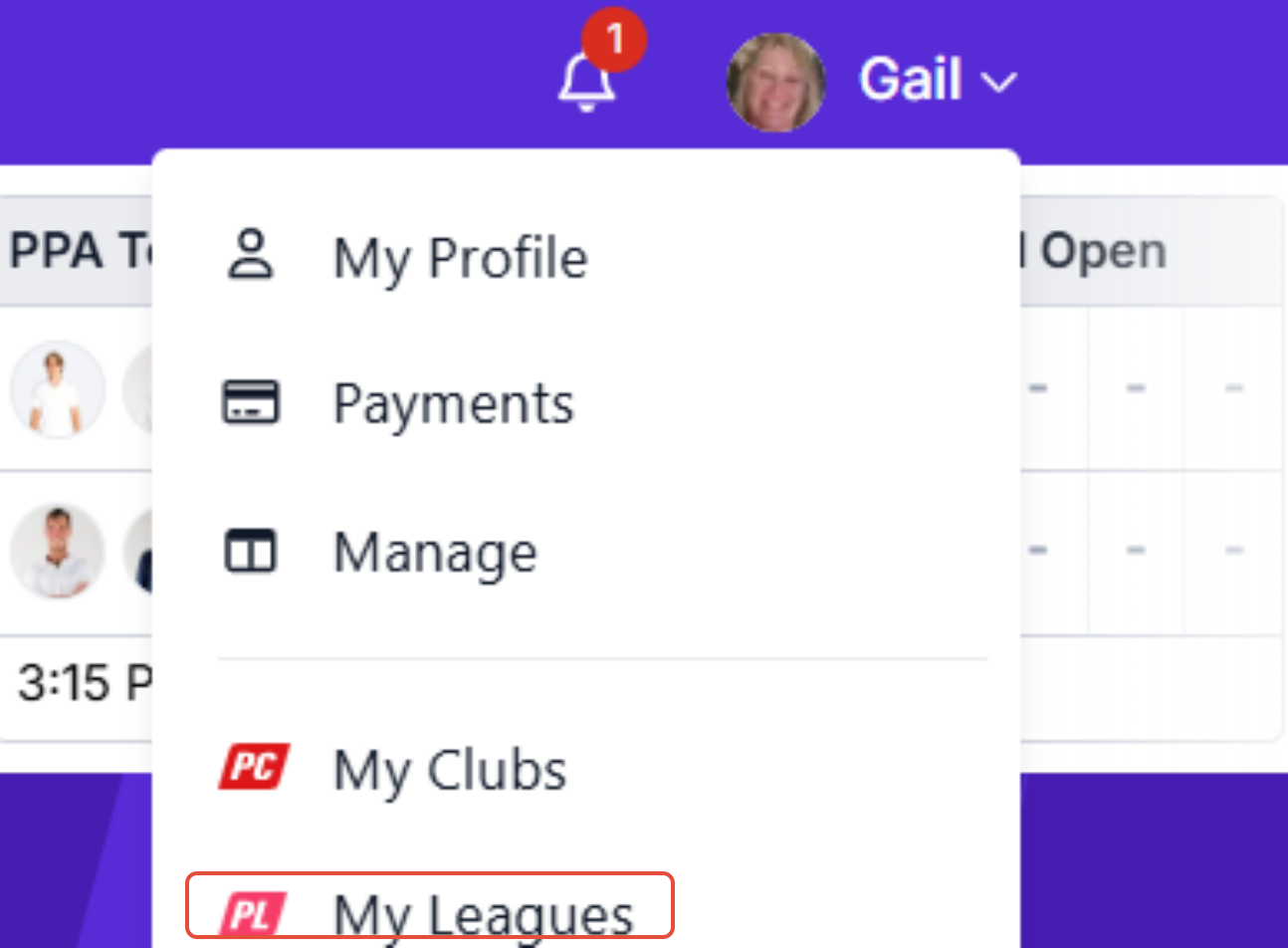
In the top right corner, you will see you name, click on your name and it will bring a drop down box and click on My Leagues
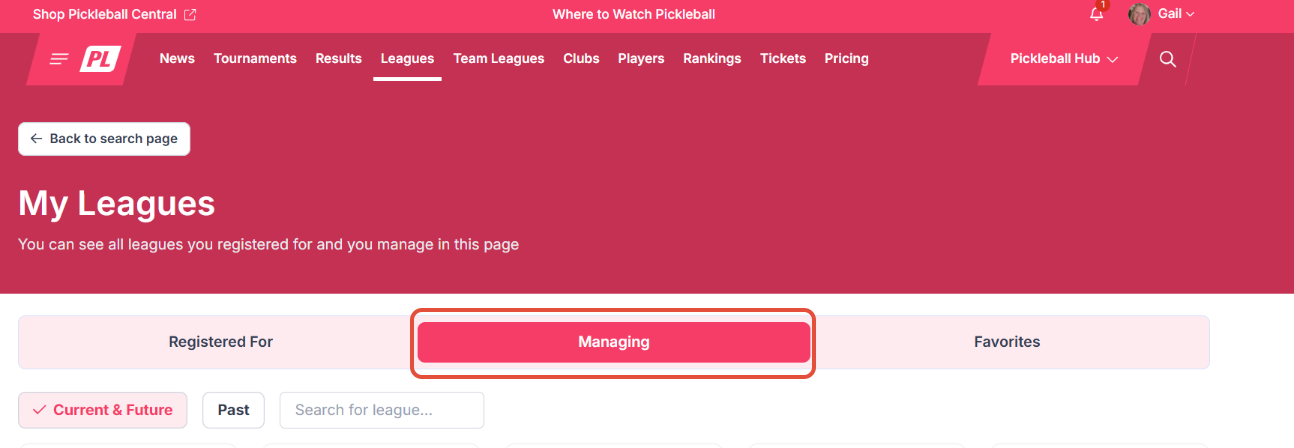
On the next screen you will see tabs in the center. Click on the Managing tab and it will bring up the leagues you are managing, click on the league you are wanting to work with
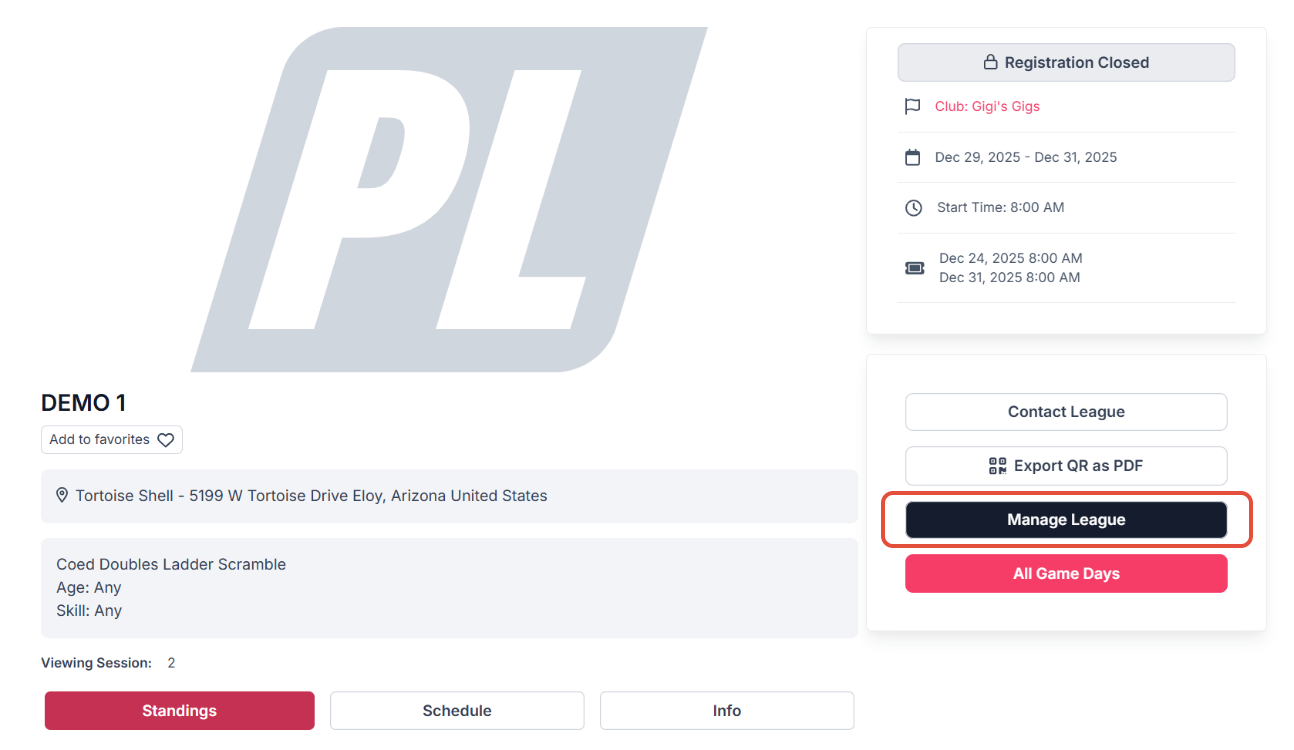
You league detail page will show and click on Manage League
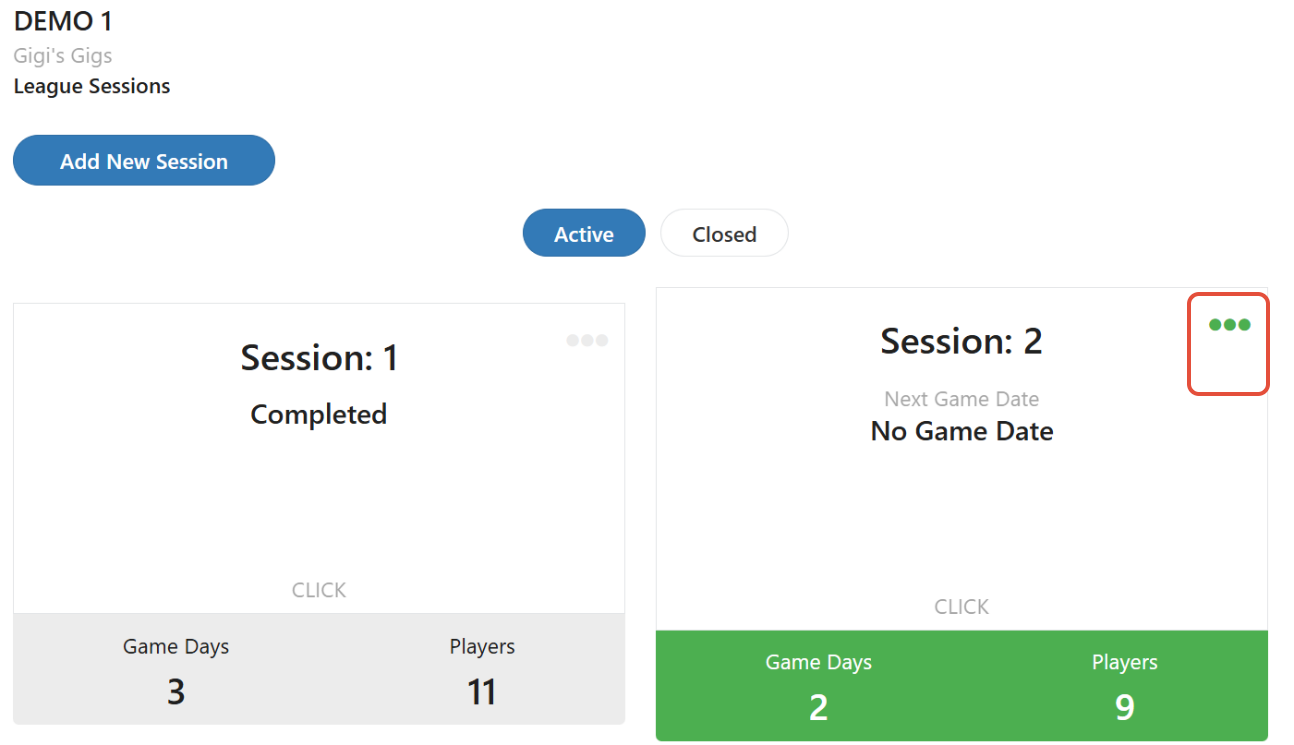
The next screen will show you all your sessions. Click on the current session you are running with the three dots in the top right corner
This will bring you to the league session menu, click on All Session Game Days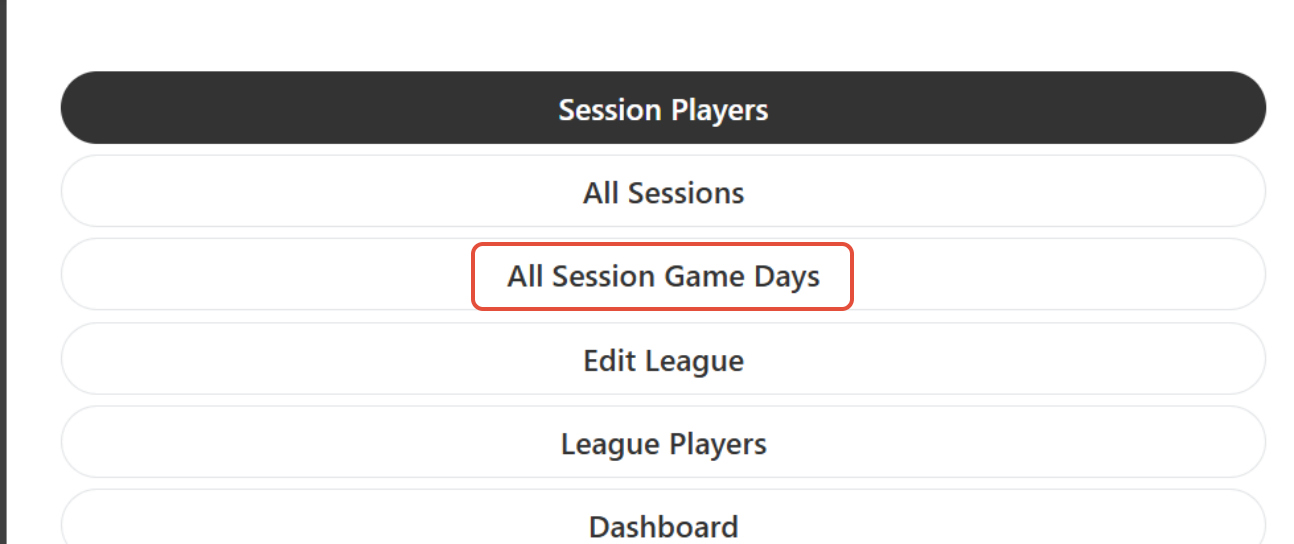
Choose the grey section game day you will be running.
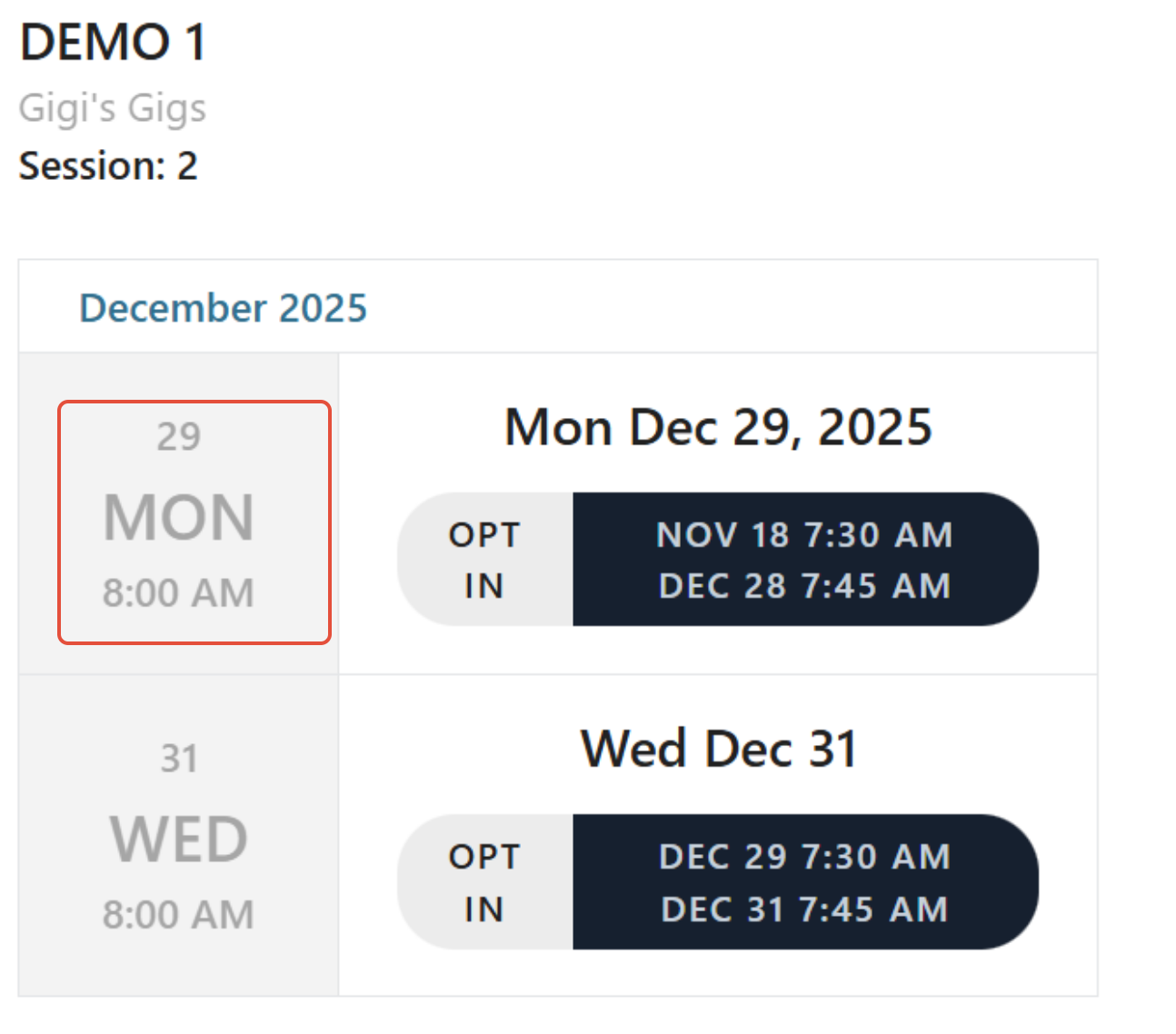
Here you will see the game day console in which to work the game day.
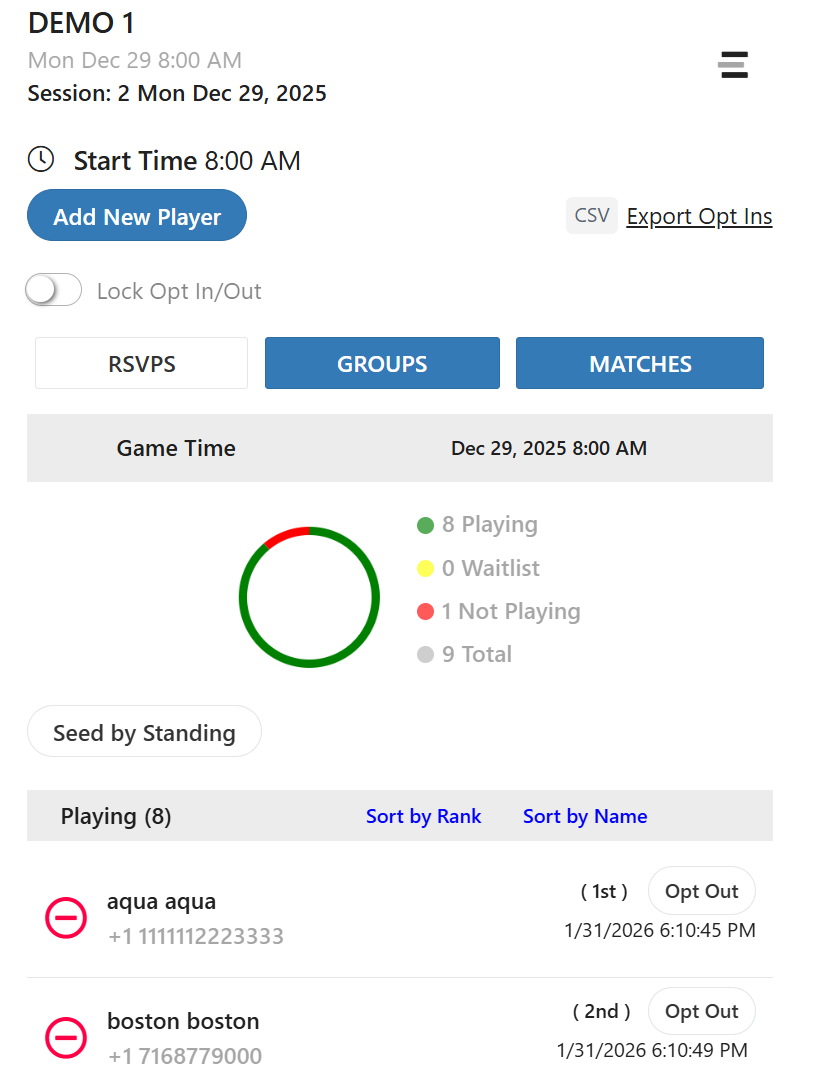
First thing is to verify all players that are wanting to play are opted in. If you have a player that is not opted in, you as a league manager can opt them in. Click on the opt in tab to the right of their name and this will put them in the playing list.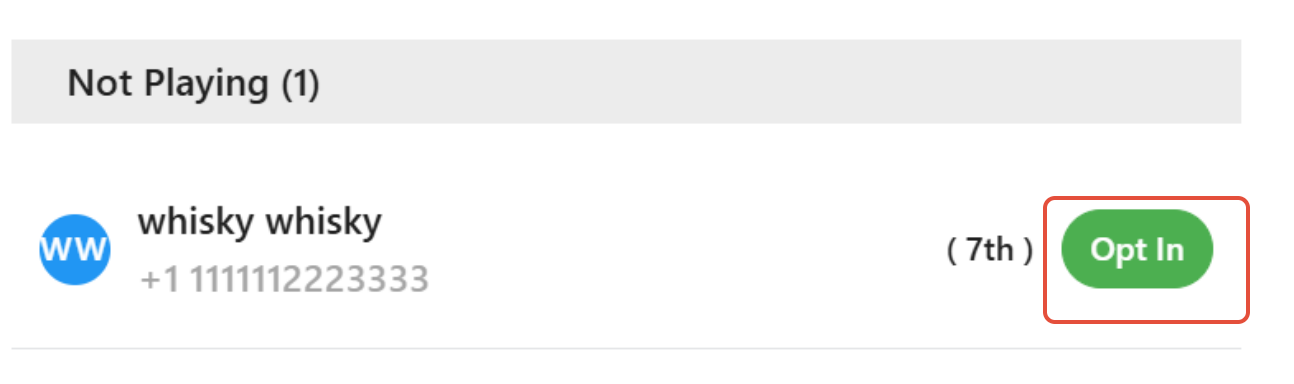
Once all players are in the playing list, click on the Lock Opt In/Out tab and this will lock all players in the game day and any other players trying to opt out.
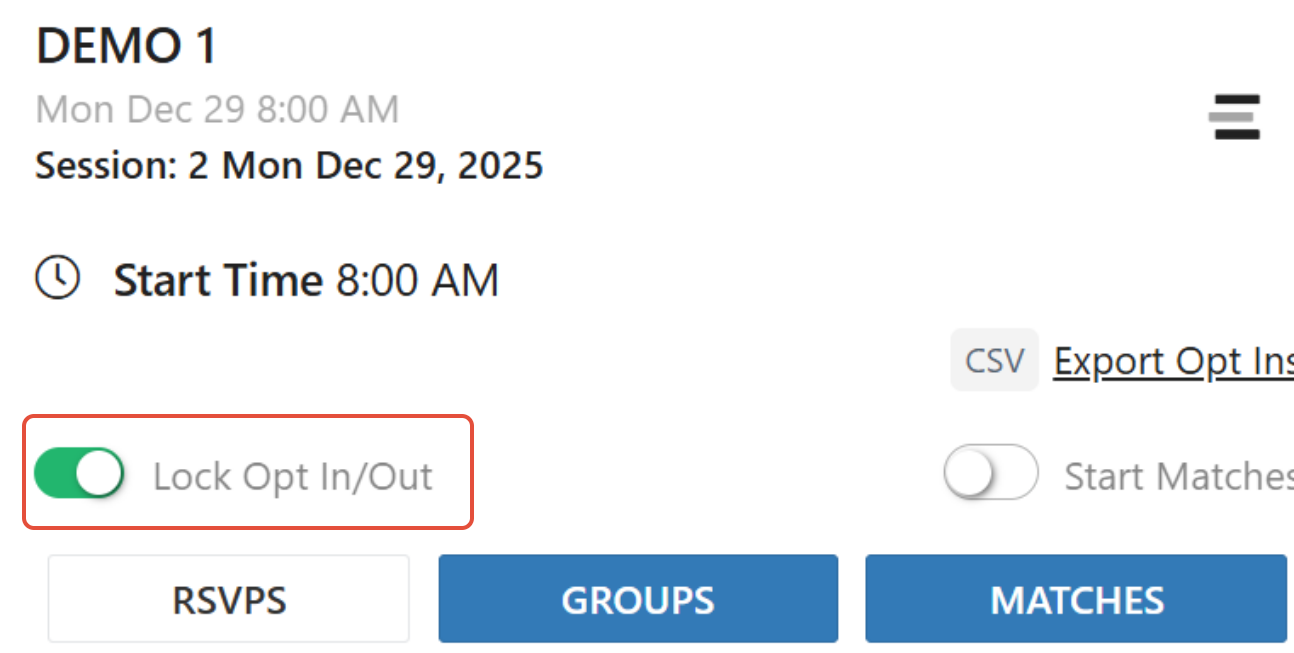
Next move to the tab that states Groups.
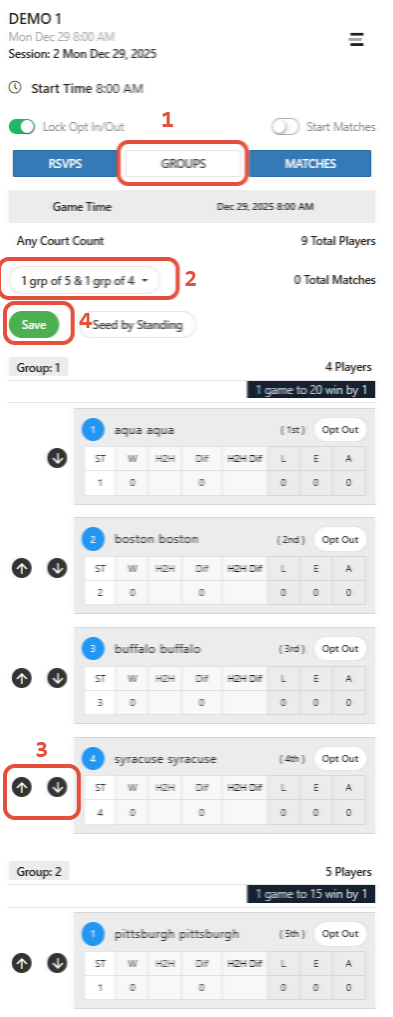
Here you will see what choices you have for groups and how the players are distributed within the groups.
- Groups Tab
- Click on the drop down and this will allow you to chose the grouping sizes available for you to run your game day. Be sure to save any changes
- These arrows will allow you to move players up and down within the groups. Be sure to save any changes.
- Save button - any changes in this tab need to be saved
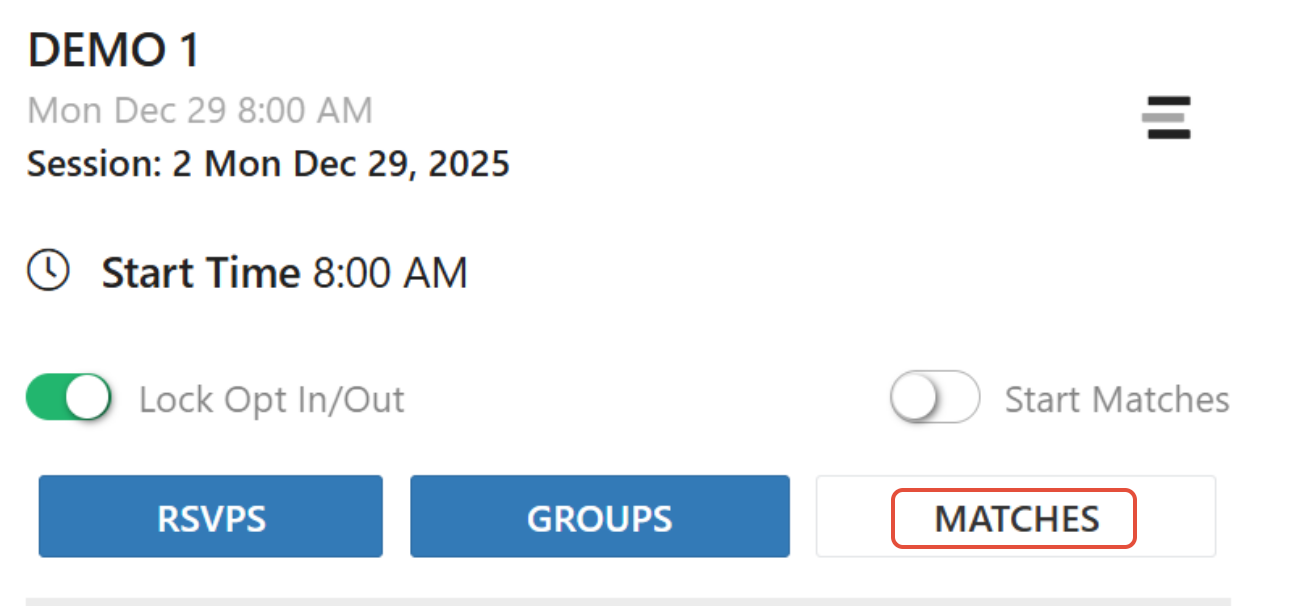
Next step is to go to the Matches tab
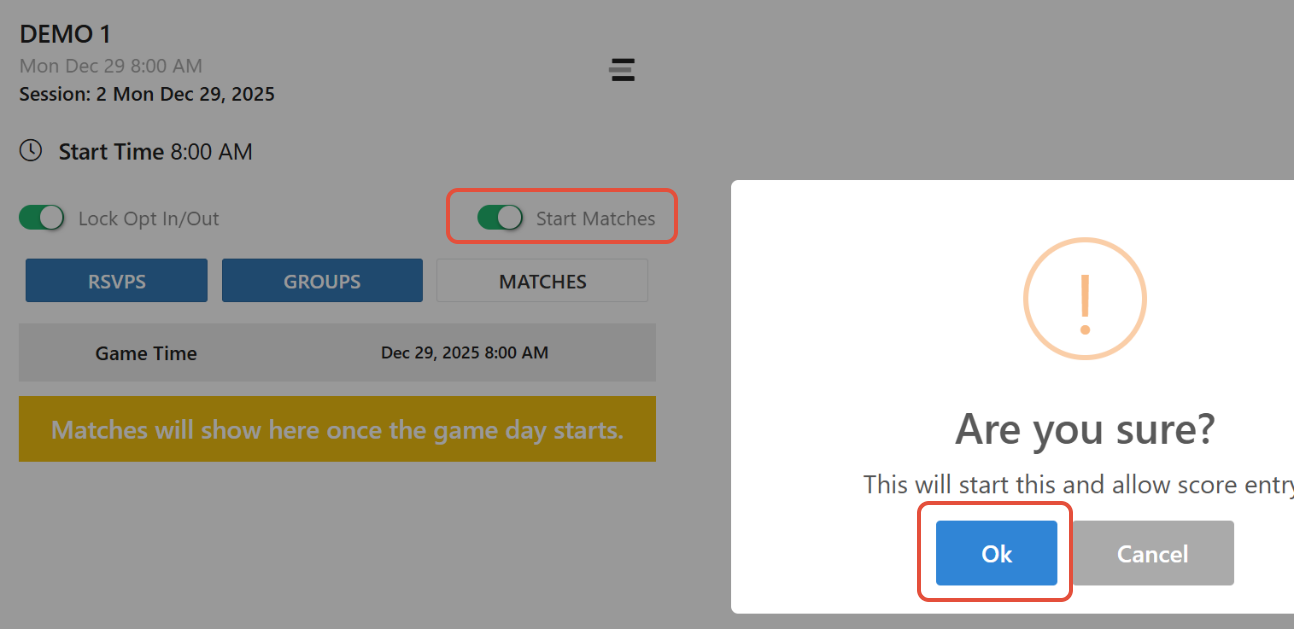
Once on this tab, Click on Start Matches. The pop up screen will allow you to be sure you are ready to have the system create the matches.
Click on the match you want to enter the score for.
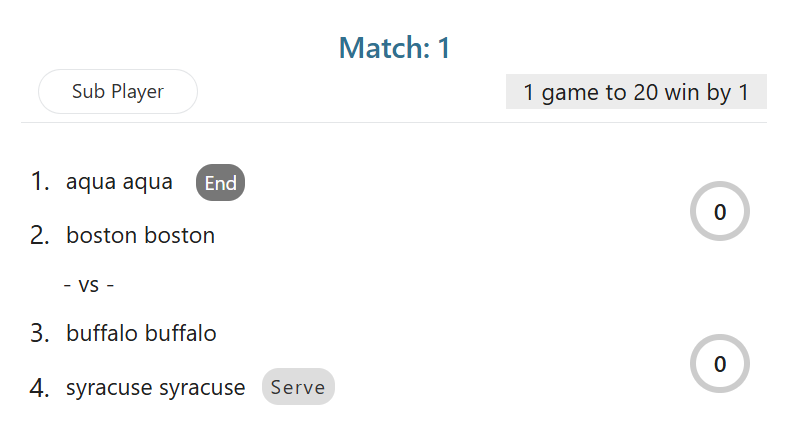
The scoresheet will come up for you to enter scores.
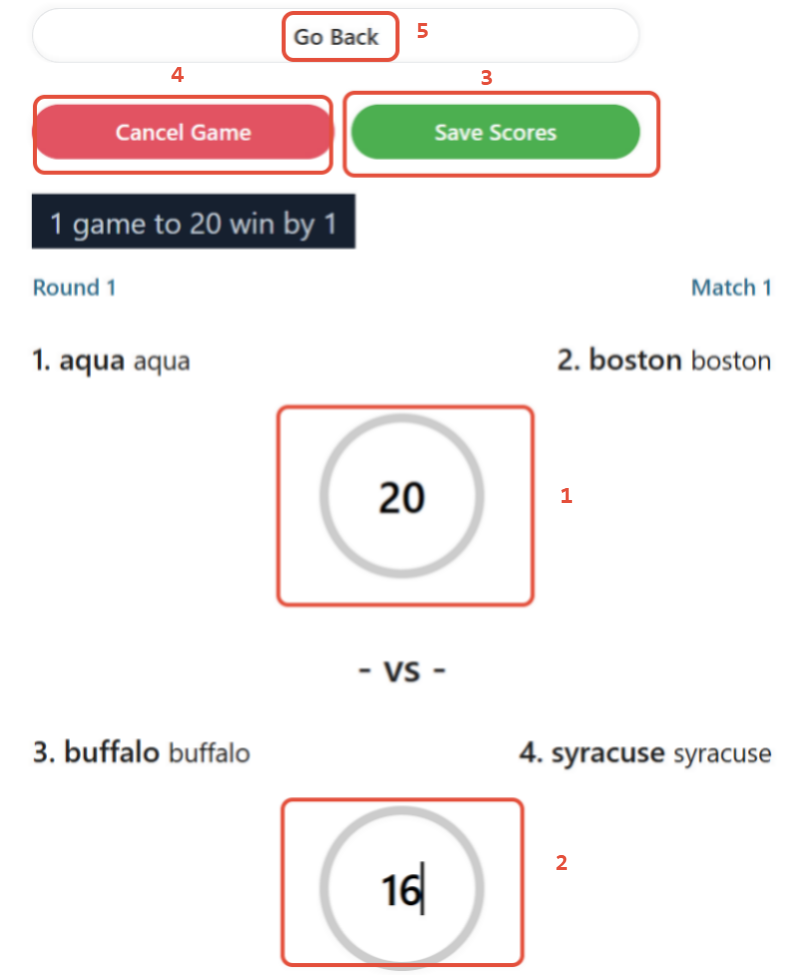
Entering Scores
- Enter the score for this team
- Enter the score for this team
- Click on Save Scores to Save
- Cancel Game - this is used when the match is cancelled due to time constraint, bad weather, etc
- Go Back - this will bring you back to the Matches tab
If you need to correct a score before completing the game day, just click on the match and correct the scoring.
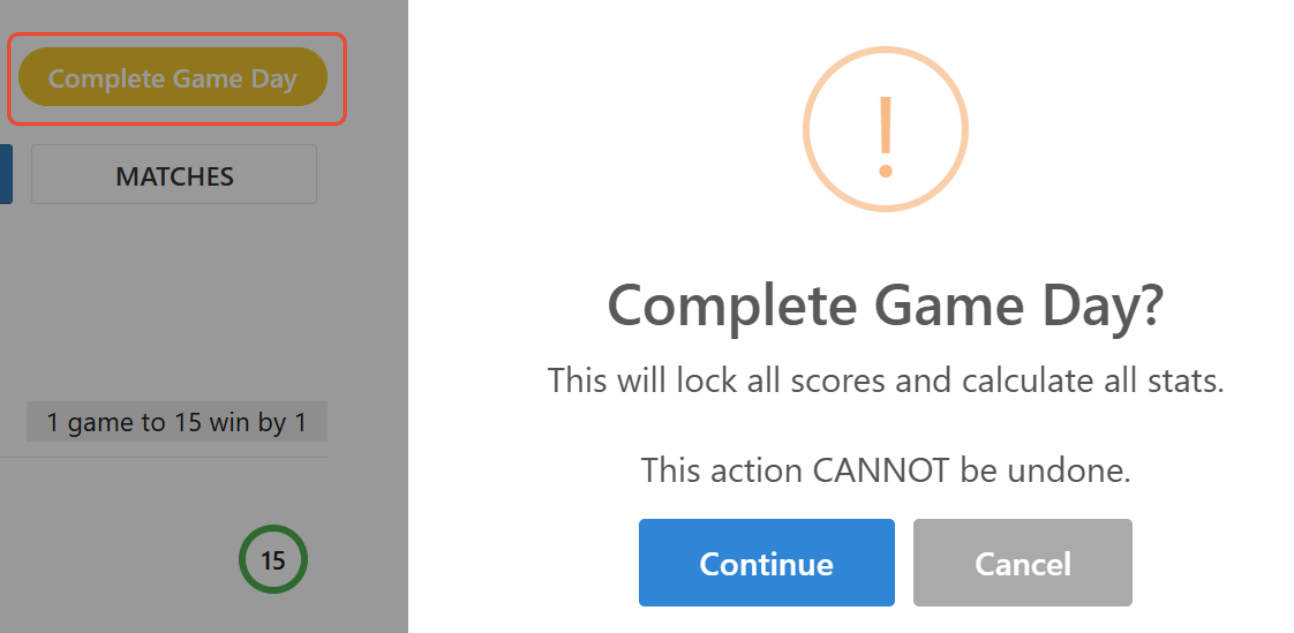
Once all matches are entered, the Complete Game Day tab will pop up. If this does not show up, you are missing a score, scroll through and verify all scores have been entered.
By clicking on the Continue Complete Game Day tab, this will lock all scores and calculate all stats.
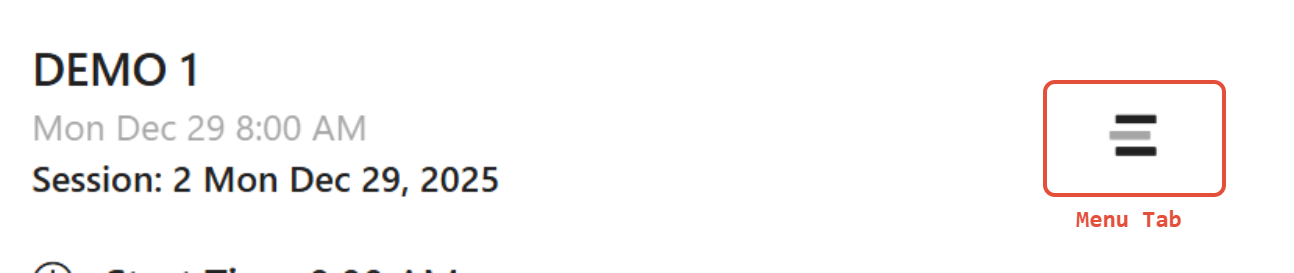
To review the stats, click on the Menu tab at the top of the game day page.
On the next screen click on the Detail Page
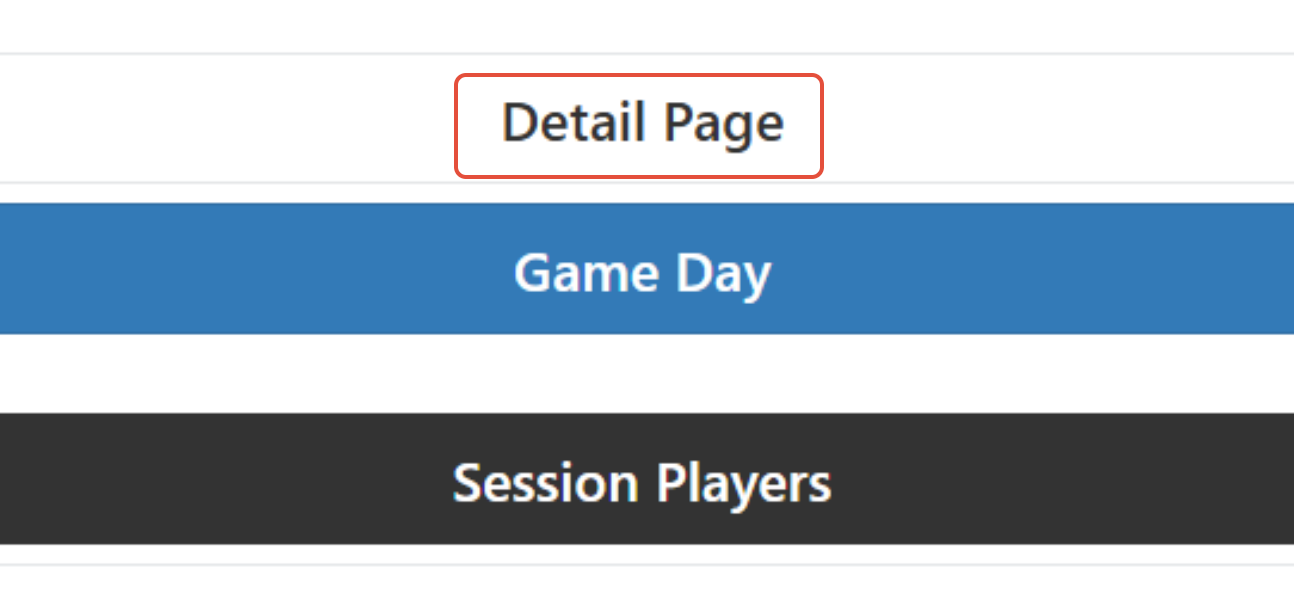
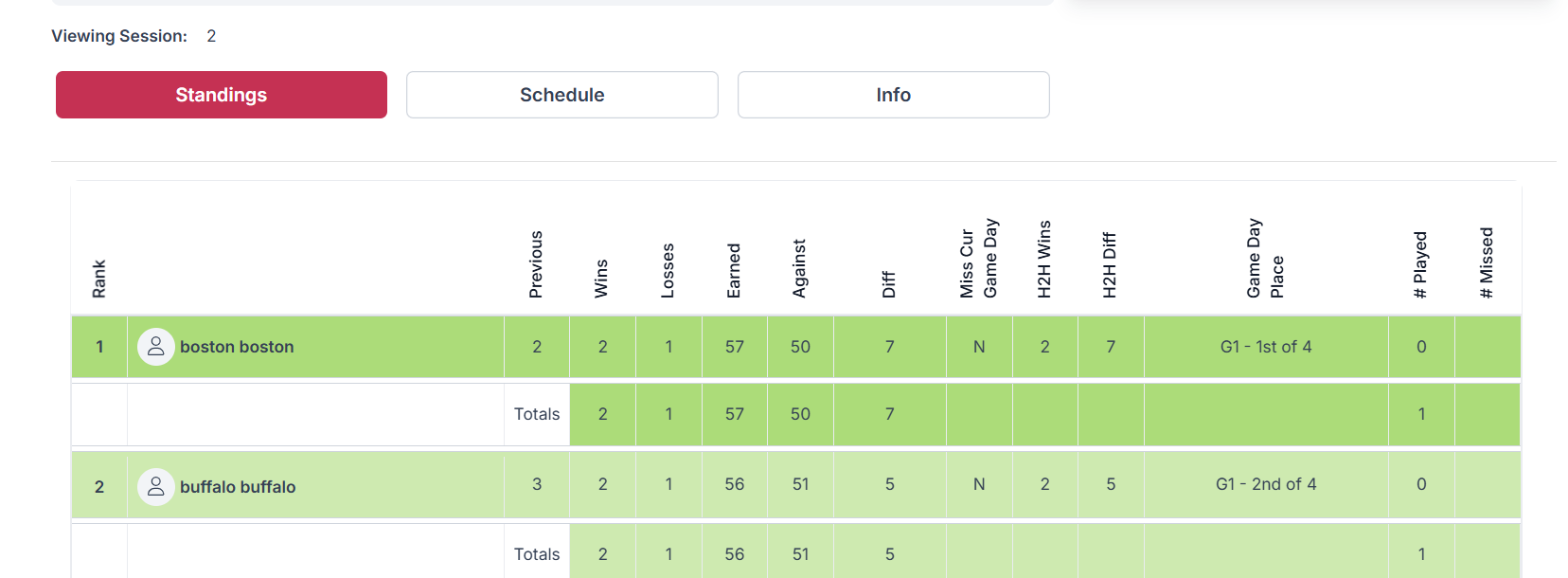
You will find the standings on the Detail Page
Was this article helpful?
That’s Great!
Thank you for your feedback
Sorry! We couldn't be helpful
Thank you for your feedback
Feedback sent
We appreciate your effort and will try to fix the article