Cet article n'est pas disponible en French. Affichez-la en English
Managing your League Players and their payments under the League Players tab.
.
TABLE OF CONTENTS
- Check Outstanding Balances Due from Players
- Process Manual Payments from Players
- Give Stripe Refunds to Players
- Process Discounts to Players
- Process Manual Refunds to Players
- Email Receipt to Players
1. Checking balances on league players
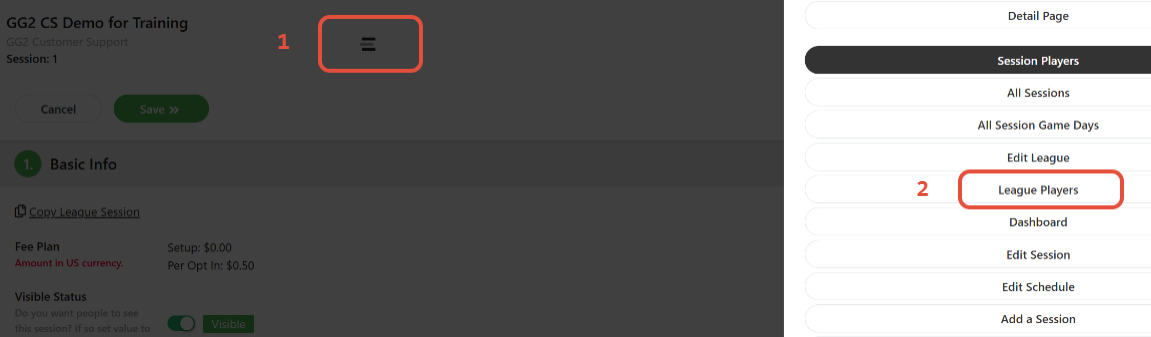
To get to the League Players tab, go to your current session and click on
- Menu tab
- League Players
The list of your players will be listed alphabetically. 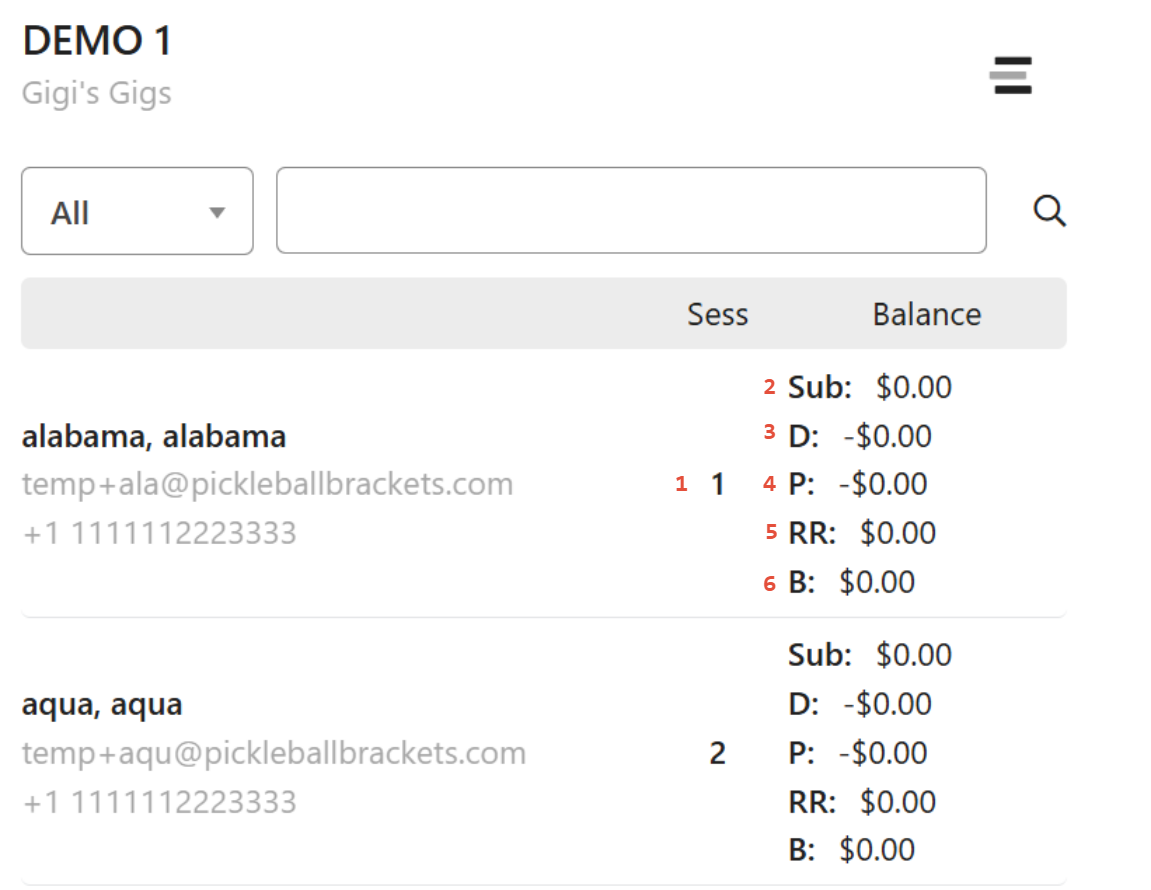
Here you can review balances of the player.
- This is the session number each player is rostered in.
- Sub: Subtotal
- D: Discount
- P: Payment
- RR: Refund
- B: Balance
2. Process Manual Payments from Players
When you click on a player's name, the follow menu will appear:
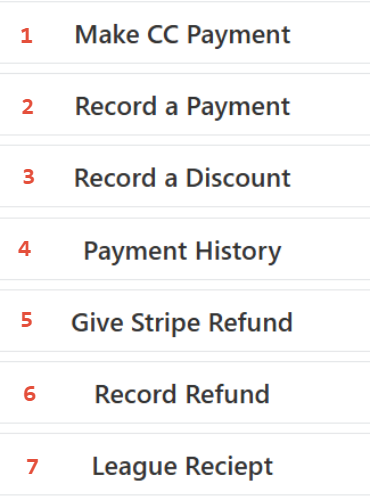
- Make a CC Payment - Click here and it will lead you to the players receipt. At the bottom of the page, click on the Make a Payment tab, it will lead you to the credit card payment page.

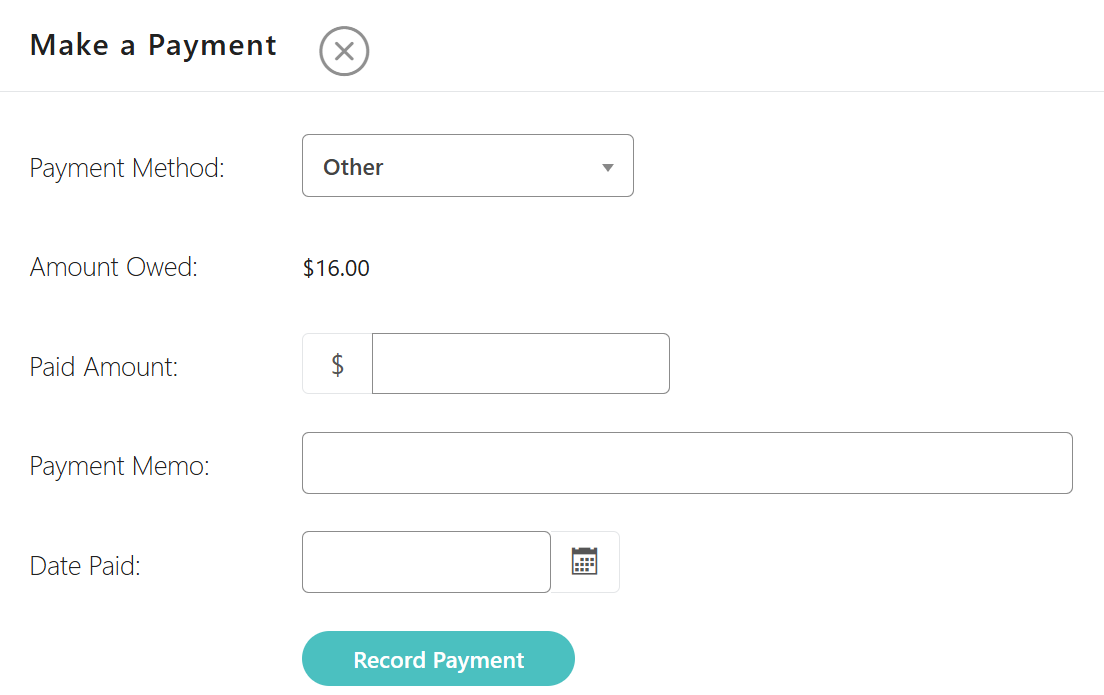
- Record a Payment - Make a manual payment, this does not transfer ANY funds. The payment amount should be a positive number. The amount will be shown under the Payment category. Payment Method drop down allows you to chose from cash, personal check, etc.
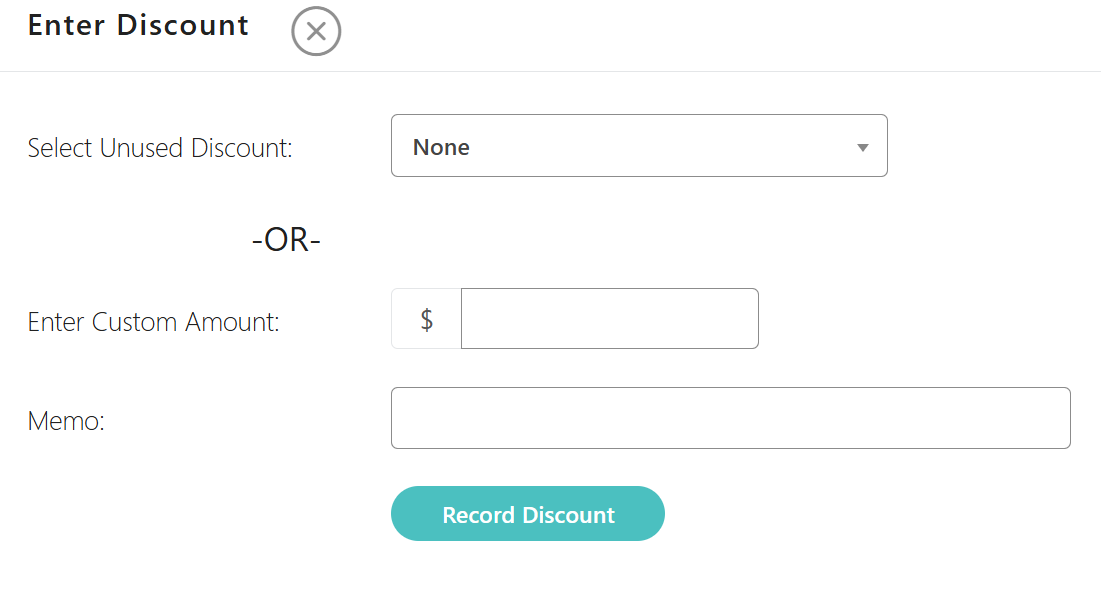
- Record a Discount - This will only be an option if there is a balance. Select an unused discount code you have set up in league under Discounts OR you can enter a custom amount and include a memo.
- Payment History - Review the payment history of the player. Click the yellow "Refund" button for the transaction that needs to be refunded.
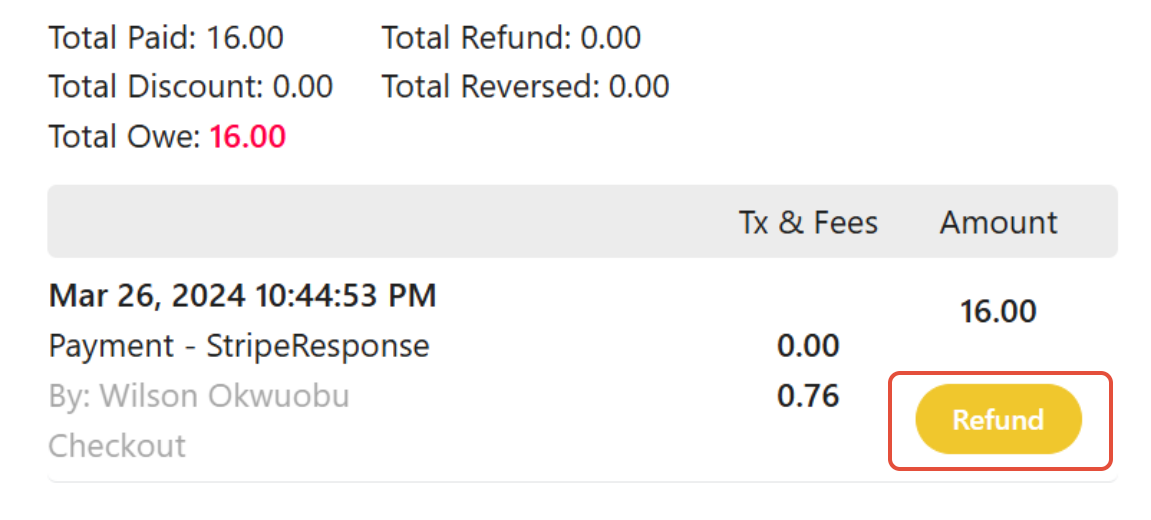
- Give Stripe Refund - This will only be an option if the player paid via Stripe.
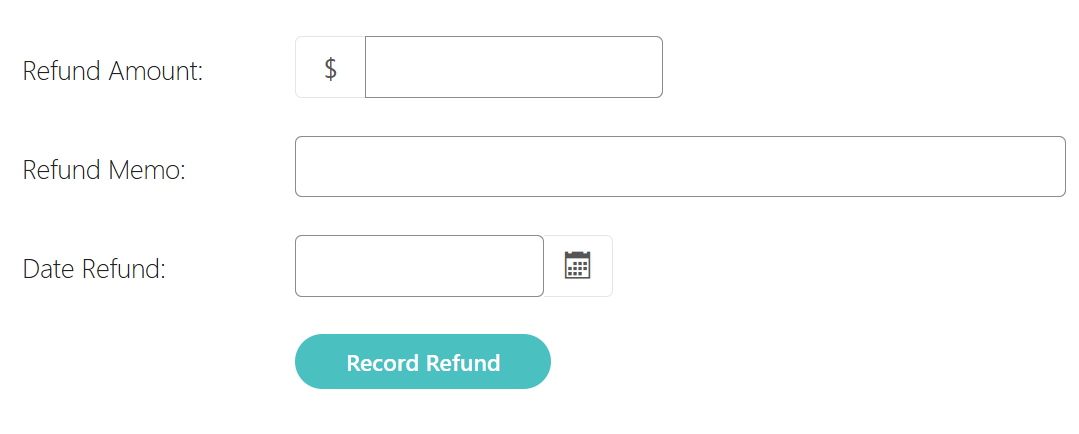
Click the yellow "Refund" button for the transaction that needs to be refunded. - Record Refund - This does not transfer ANY funds or give money back to the play. This is only for tracking purposes on the players' transaction history. To give a refund you will need to go to the Payment History tab.
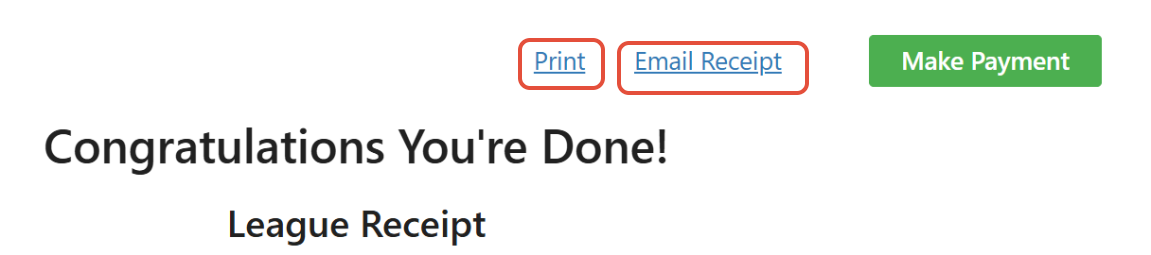
- League Receipt - This will display the players receipt of payments. Click on the Print tab to print a receipt for the player. Click on Email Receipt to email a receipt to the player.
Was this article helpful?
That’s Great!
Thank you for your feedback
Sorry! We couldn't be helpful
Thank you for your feedback
Feedback sent
We appreciate your effort and will try to fix the article