This help guide explains how to navigate to a team league game day, enter match scores, handle tiebreakers, and finalize results so standings are accurate. It is written step-by-step to make score entry quick and mistake-resistant. You can also watch the video below instead.
TABLE OF CONTENTS
- How to Enter Scores for Team League Game Days
- Purpose
- Quick overview
- Step 1 - Open Game Day and your Matchup
- Step 2 - Enter individual match scores
- Step 3 - Avoid canceling matches unless necessary
- Step 4 - Complete Matches to lock standings
- Handling tiebreakers
- Finalizing a tiebreaker and closing the Game Day
- Troubleshooting and best practices
- Quick checklist before leaving the Game Day screen
- Need more help?
Quick overview
- Access your team league and open the current Game Day.
- Open your team matchup and locate the scorecards.
- Enter match scores and save each card.
- Complete Matches to lock scores and update standings.
- Follow special rules for cancellations, retirements, and tiebreakers.
Step 1 - Open Game Day and your Matchup
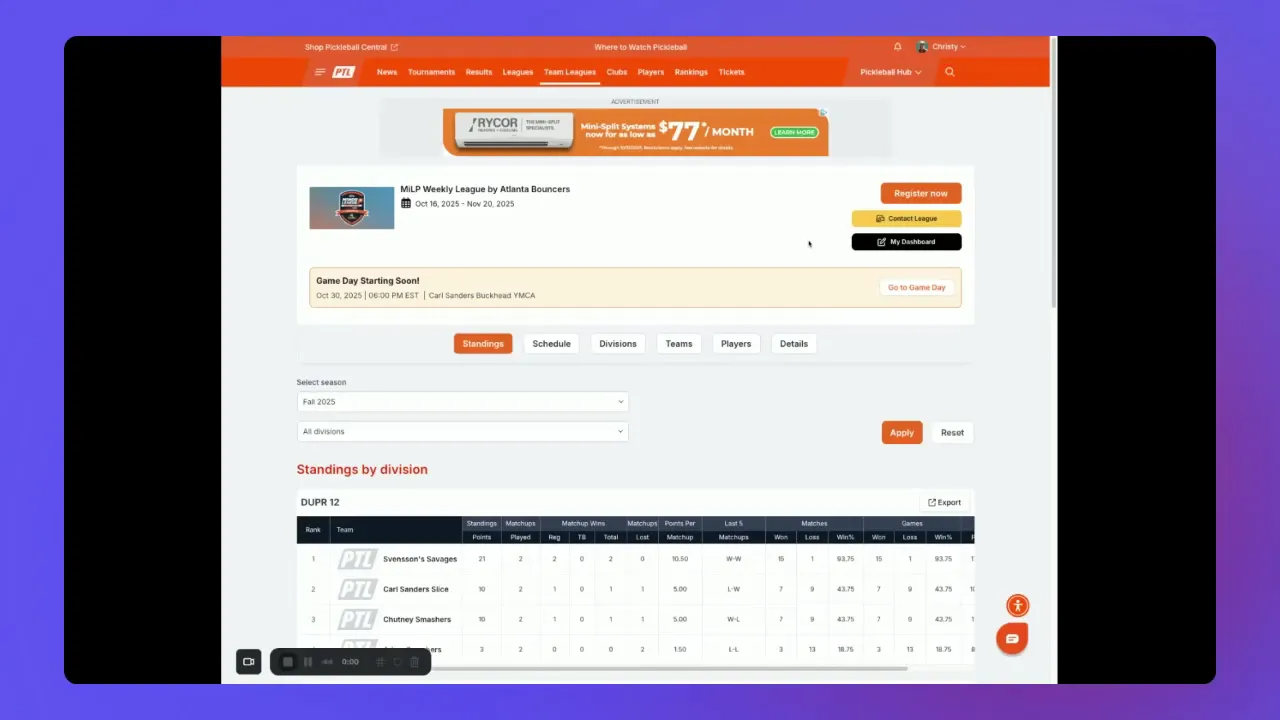
From the team league dashboard, click Go to Game Day to see the current Game Day matches. The list will show all scheduled matchups for that day. Find your team in the list and click Go to Matchup to open only the scorecards for your team versus the opponent.
Step 2 - Enter individual match scores
Each match within the matchup has its own scorecard. Open the scorecard that needs to be updated by clicking on it. A small window will pop up where you can type the final score for that match and click Save.
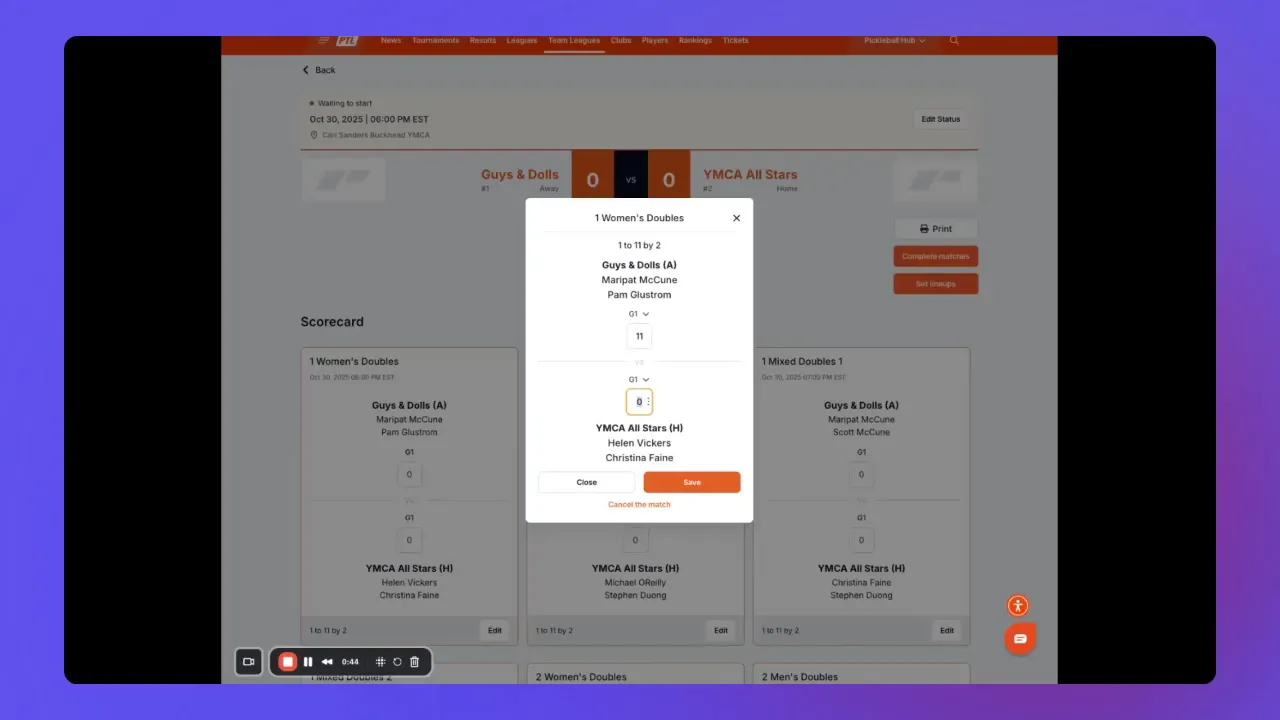
Once saved, the winning team will display a green trophy icon next to their name. This confirms the match winner visually and helps avoid confusion when reviewing multiple matches.
Editing a score after saving
If a mistake is found after saving, reopen the same scorecard, change the numbers, and save again. The system accepts edits so long as the match has not been finalized.
Retirement, forfeit, withdrawal options
Each scorecard includes a drop-down menu to mark special outcomes such as retirement, forfeit, or withdrawal. Select the appropriate status when applicable and save the card.
Step 3 - Avoid canceling matches unless necessary
If you entered a score incorrectly, do not cancel the match. Instead, zero out the scores and click Save. Cancelling a match removes it from the schedule and requires league commissioner intervention to reinstate. Only cancel a match if it was entirely cancelled and will not be replayed.
Step 4 - Complete Matches to lock standings
When all your scheduled matches for the Game Day are entered and correct, the overall team score will appear at the top of the matchup page. Click Complete Matches to lock in those scores and update league standings. This action finalizes the results for that Game Day.
Handling tiebreakers
If teams split their scheduled matches evenly, a tiebreaker may be required to determine the Game Day winner. After the main matches are marked complete, a Go-To Tiebreaker link will appear for the captain or scorekeeper to open the tiebreaker scorecard.
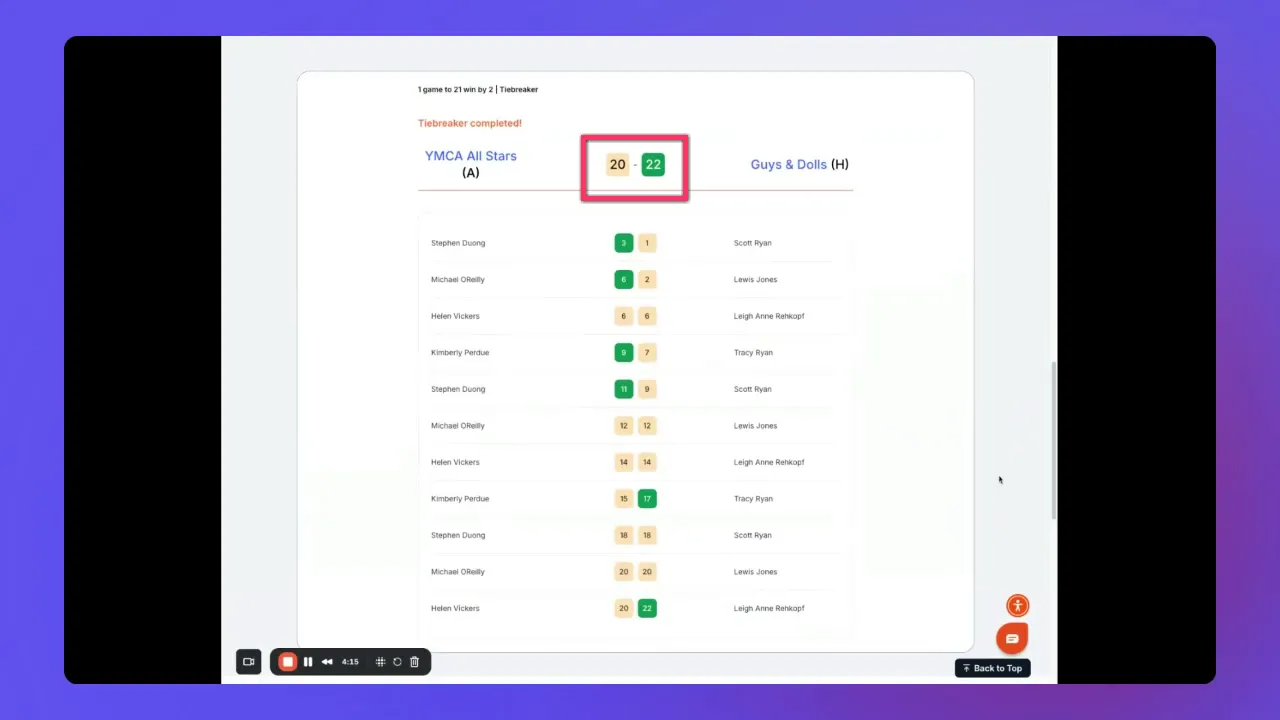
Tiebreaker scoring follows a cumulative format. Enter the team's cumulative points as players rotate off the court. Do not enter individual player points; enter the running team total as it increases. Because players rotate every four points, the cumulative totals will be derivatives of four at rotation points.
Tiebreaker rules to remember
- Scoring is cumulative - record the team total as the match progresses.
- Players rotate every four points; rotation totals align with that structure.
- Tiebreaker continues until one team reaches 21 points and leads by two points.
- Games can exceed 21 until the two-point margin is met - for example, 22-20.
Finalizing a tiebreaker and closing the Game Day
After entering the final tiebreaker total, click the Complete Match button on the tiebreaker scorecard to finalize that match. Once all matches (including any tiebreakers) are completed, your entire Game Day will be marked as closed and standings will reflect the outcomes.
Troubleshooting and best practices
- Double-check before saving - quickly verify scores before clicking Save to reduce corrections.
- If you must correct - reopen the specific scorecard, update values, and save. Do not cancel.
- Use the special status menu for retirements, forfeits, or withdrawals instead of manipulating scores to reflect those situations.
- Contact your league commissioner only if a match was accidentally cancelled and needs reinstatement.
- Keep a paper or phone record of final cumulative tiebreaker totals to avoid disputes when totals approach 21 and beyond.
Quick checklist before leaving the Game Day screen
- All match scorecards are filled and saved.
- Any retirements, forfeits, or withdrawals are selected in the drop-down.
- Tiebreaker totals are recorded as cumulative scores and follow the rotation rule.
- Complete Matches has been clicked to lock the day's results.
Need more help?
For a more in-depth review of score entry procedures, tiebreaker scenarios, and administrator actions, check the associated video tutorial.
Was this article helpful?
That’s Great!
Thank you for your feedback
Sorry! We couldn't be helpful
Thank you for your feedback
Feedback sent
We appreciate your effort and will try to fix the article