League Players can opt themselves in or out from their phones or their computer by logging in to their pickleball.com account, Leagues and then My Schedule.
If you are in multiple Leagues, Click on the League and then Game Day.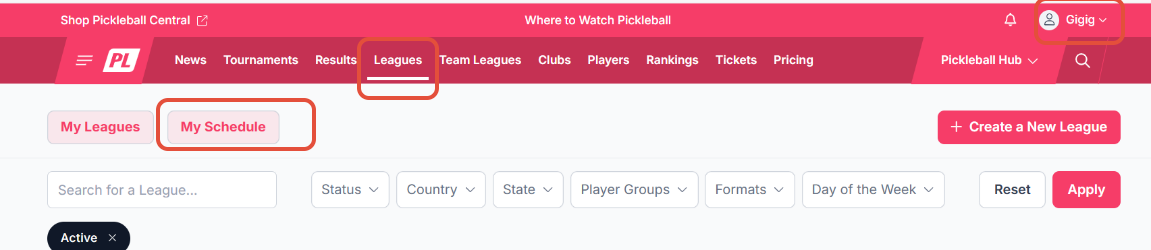
Here we are explaining what different game day screens may look like and why.
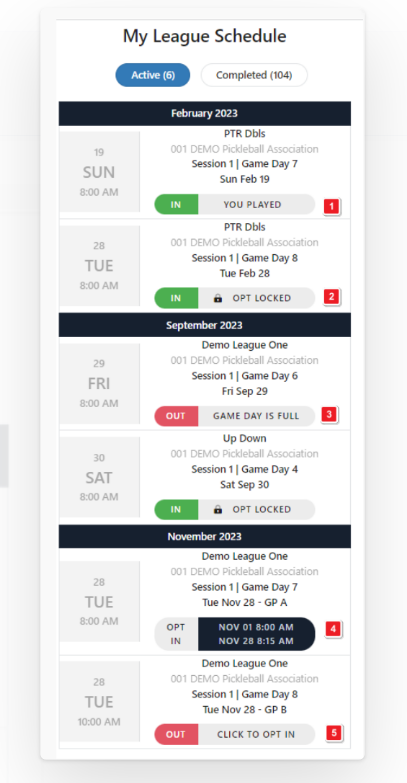
1. Indicates a past game day that the player already participated in.
2. Indicates that opt in is locked and the player is in. Only a league manager can opt a player out after the game day opt in is locked.
3. Indicates the game day is full and the player is out.
4. Indicates that the player is not in but the opt in period has not yet started.
5. Indicates that the player is out but may still opt in for the game day.
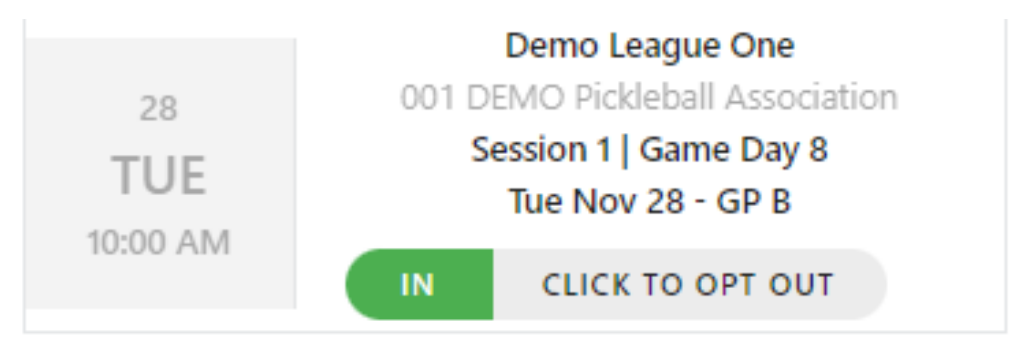
Click to Opt In and the display will turn green.
Was this article helpful?
That’s Great!
Thank you for your feedback
Sorry! We couldn't be helpful
Thank you for your feedback
Feedback sent
We appreciate your effort and will try to fix the article