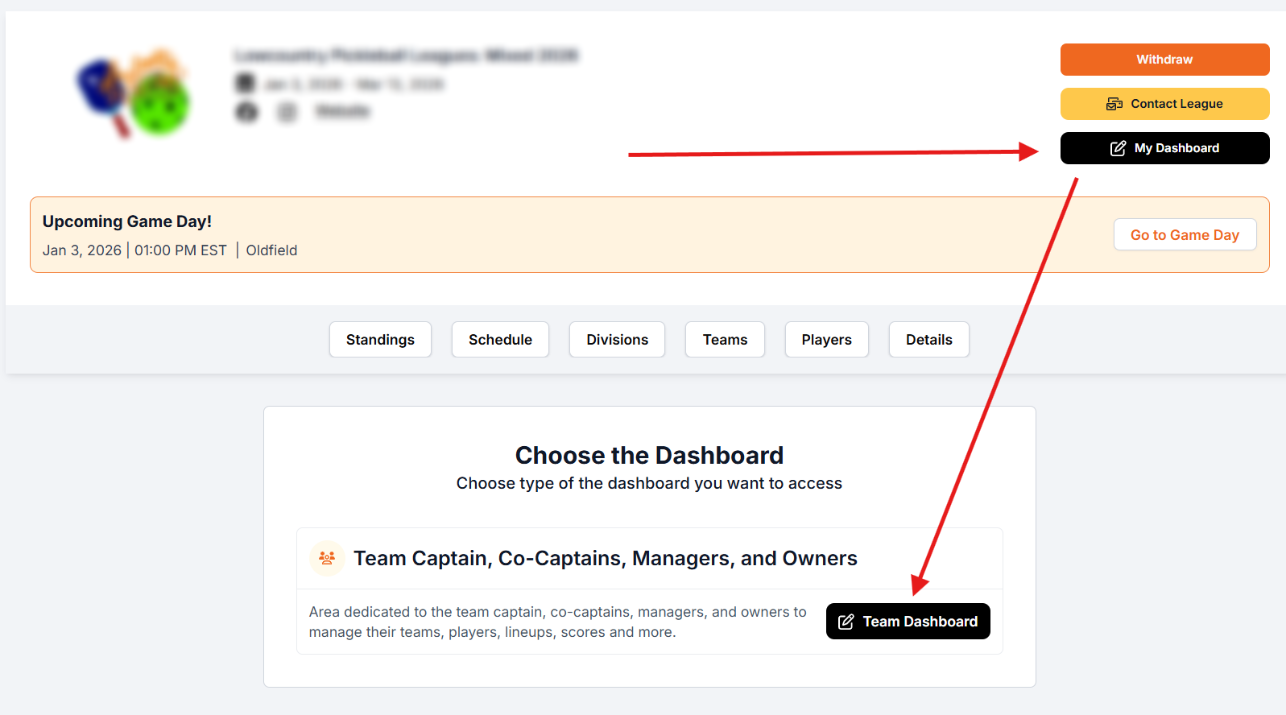
After logging in to your Pickleball.com account, click on your name in the upper right corner and select "My Team Leagues" from the menu. Locate your Team League, and then access the league by selecting the "My Dashboard" and then the "Team Dashboard" options that follow:
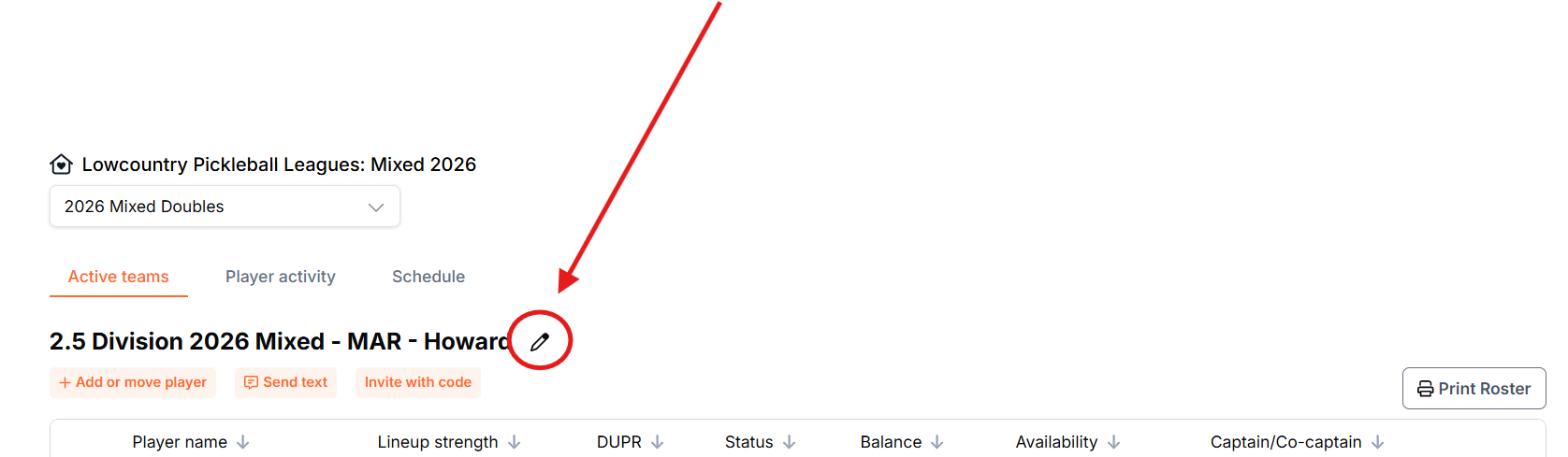
Once the page opens, click on the "pencil" icon:
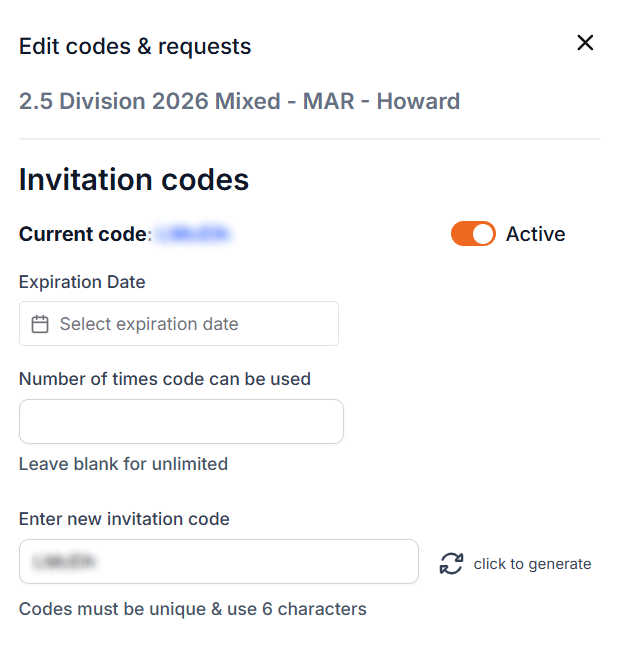
This opens up the Invite Code creation tool that will allow you to customize and create your Invite Code. Once completed, be sure to save the code.
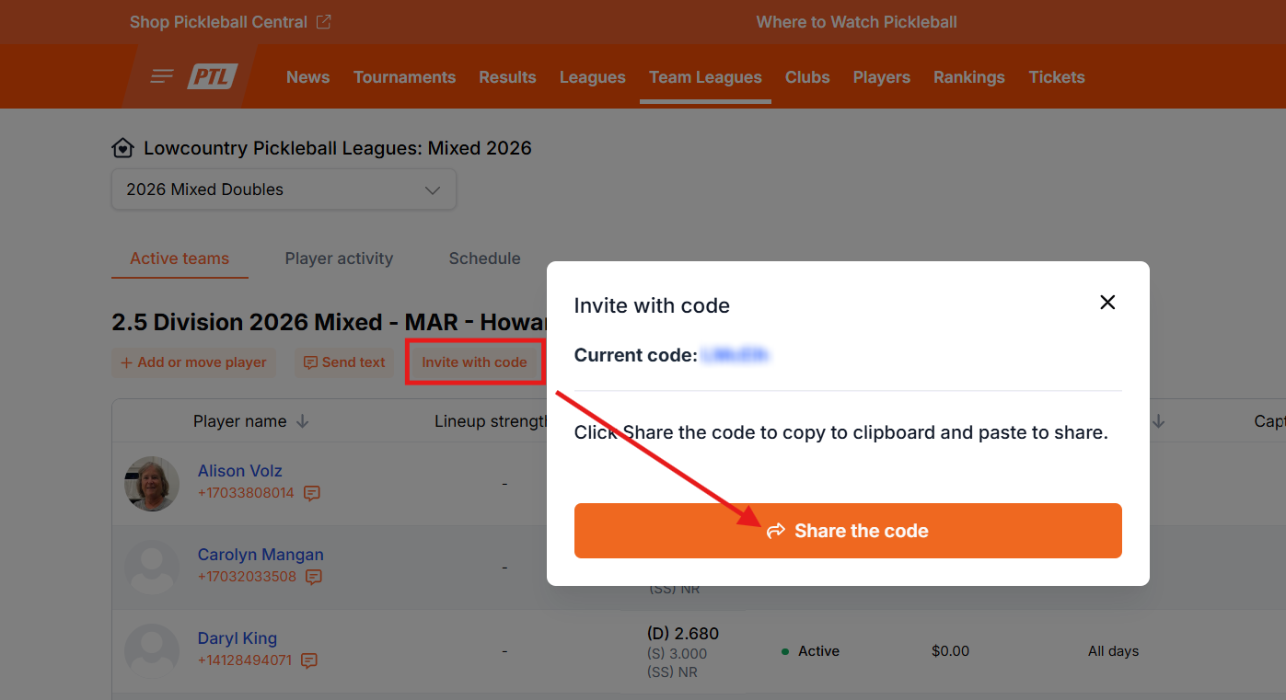
You can use the "Invite with Code" button to view and copy the listed code to a dashboard that you can now use to communicate to your team members you wish to have sign up.
Note: This method doesn't allow the system to track your invites. You will know a player used your shared code to complete their registration when the player appears in your Active teams tab as a player.

If you want to be able to track your invitations on the Player Activity tab, use the +Add Player button instead.
Was this article helpful?
That’s Great!
Thank you for your feedback
Sorry! We couldn't be helpful
Thank you for your feedback
Feedback sent
We appreciate your effort and will try to fix the article