TABLE OF CONTENTS
Overview
As a team captain, registering players quickly and correctly keeps your roster organized and ensures everyone receives the right communications. There are three primary ways to add players: adding players during registration, using the Team Dashboard to add or move players, or sharing an invite code.
Method 1 — Add Players During Team Registration
If you are forming a new team or registering for a season, you can add players during the team registration flow.
- Go to pickleballteamleagues.com and open the page for your league.
- Click Register Now to reach the registration page.
- Select Team Registration and complete the required fields such as team name and division.
- Add players to your roster as prompted, then complete payment to finalize registration.
This page is also where individuals can sign up using an invite code and where free agents can self-register. Using team registration is convenient when you know your full roster at signup and want to handle payment in one transaction.
Access Your Team Dashboard (Method 2 & 3)
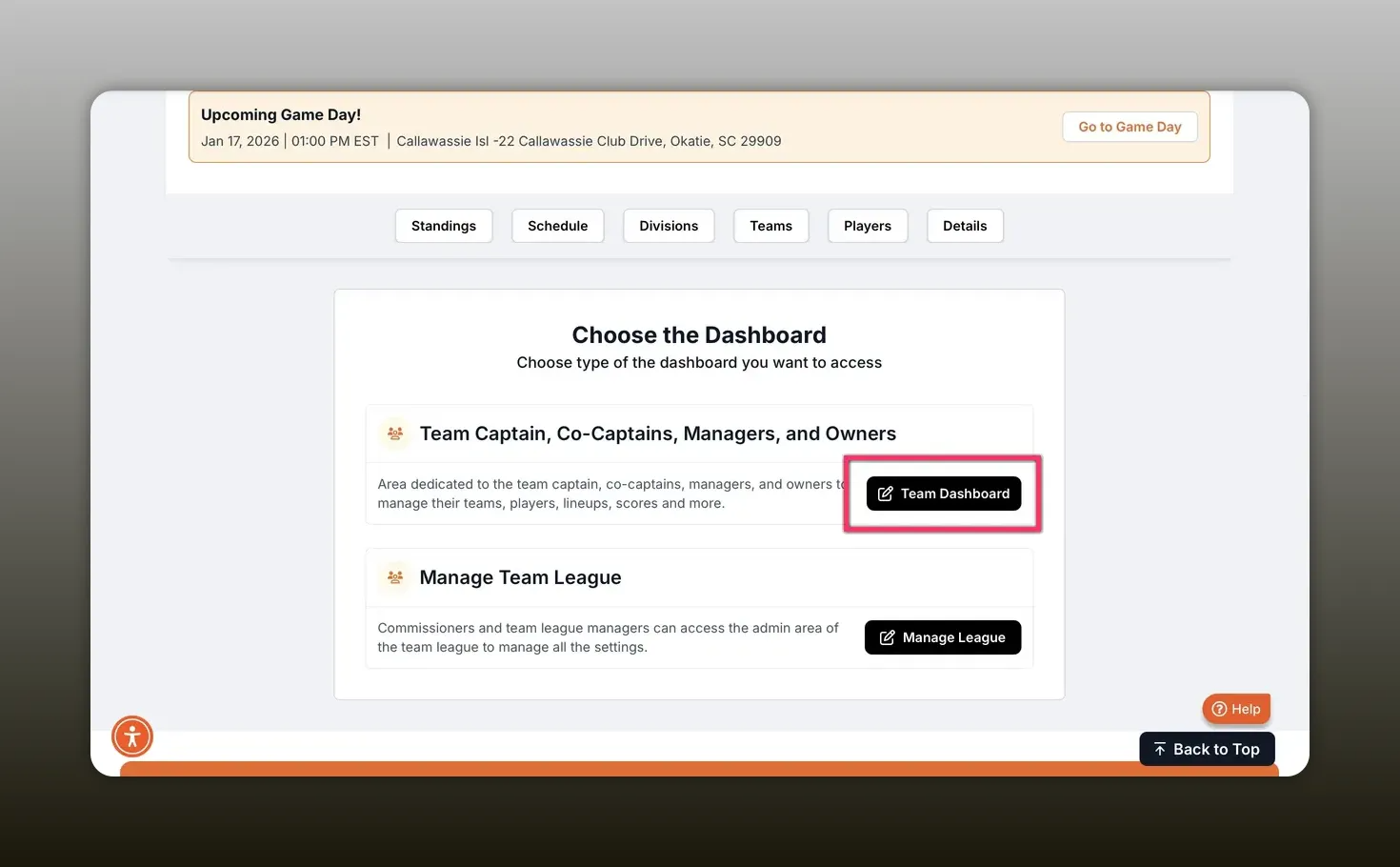
Start by signing in at pickleballteamleagues.com and selecting the league you captain. From there, click My Dashboard and choose Team Dashboard. Depending on your permissions you might see different options, but the Team Dashboard is where roster management happens.
Method 2 — Add or Move Player (Direct Add)
This is the most common method when a team has already been registered.
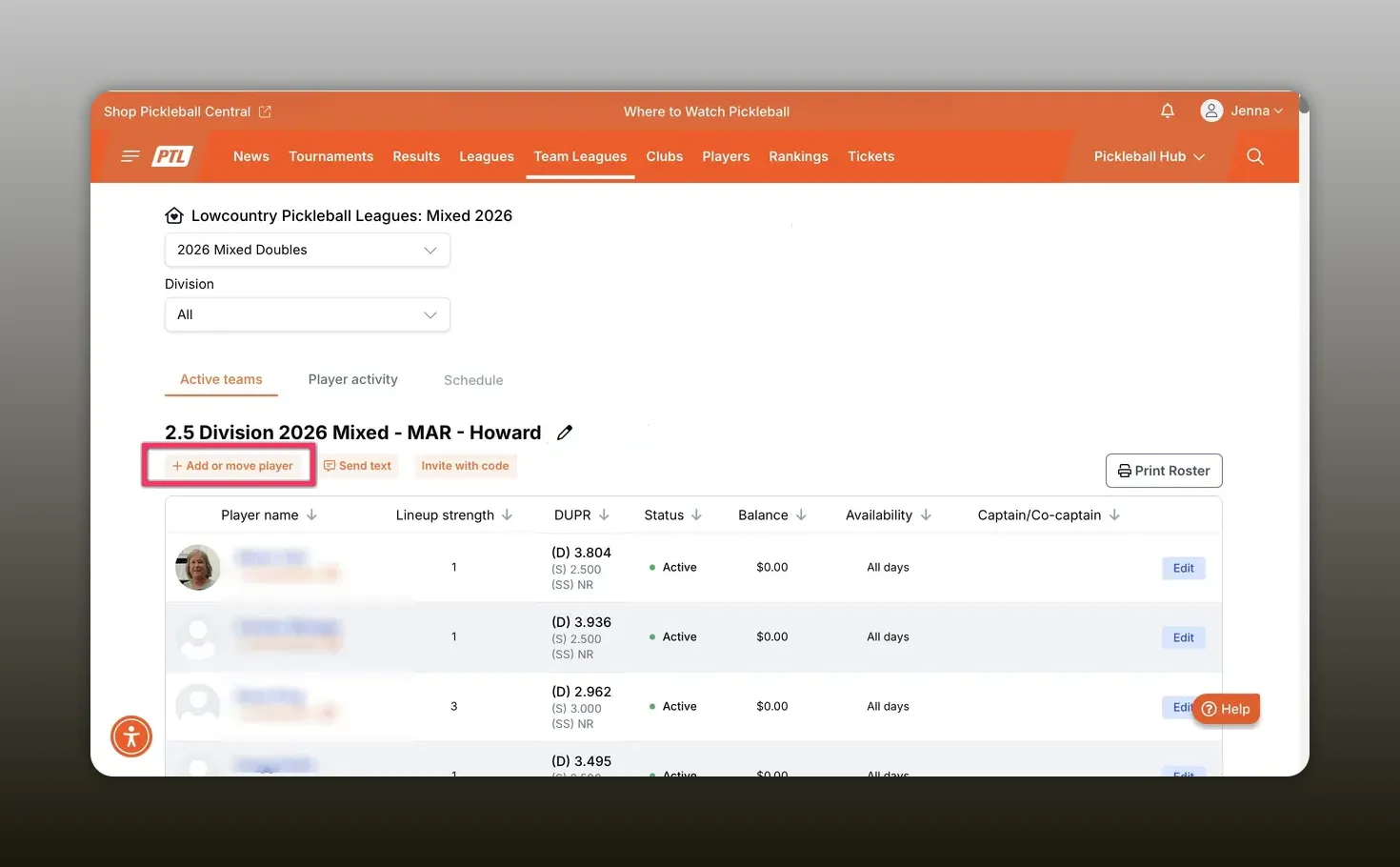
- Open the Team Dashboard and click Add or Move Player.
- Scroll down and click the Add button, then select Add Players.
- Search for the player by last name and add them to your team.
When you add someone, the system sends an email invitation with a link where the player can accept or decline the invite. That makes it easy to confirm a player's commitment and keeps email records for both captain and player.
Method 3 — Invite Codes and Free Agent Requests
Invite codes are perfect for recruiting, posting on social channels, or allowing multiple players to join without individually searching for accounts.
- From the Team Dashboard, click the edit pencil next to the team you want to manage.
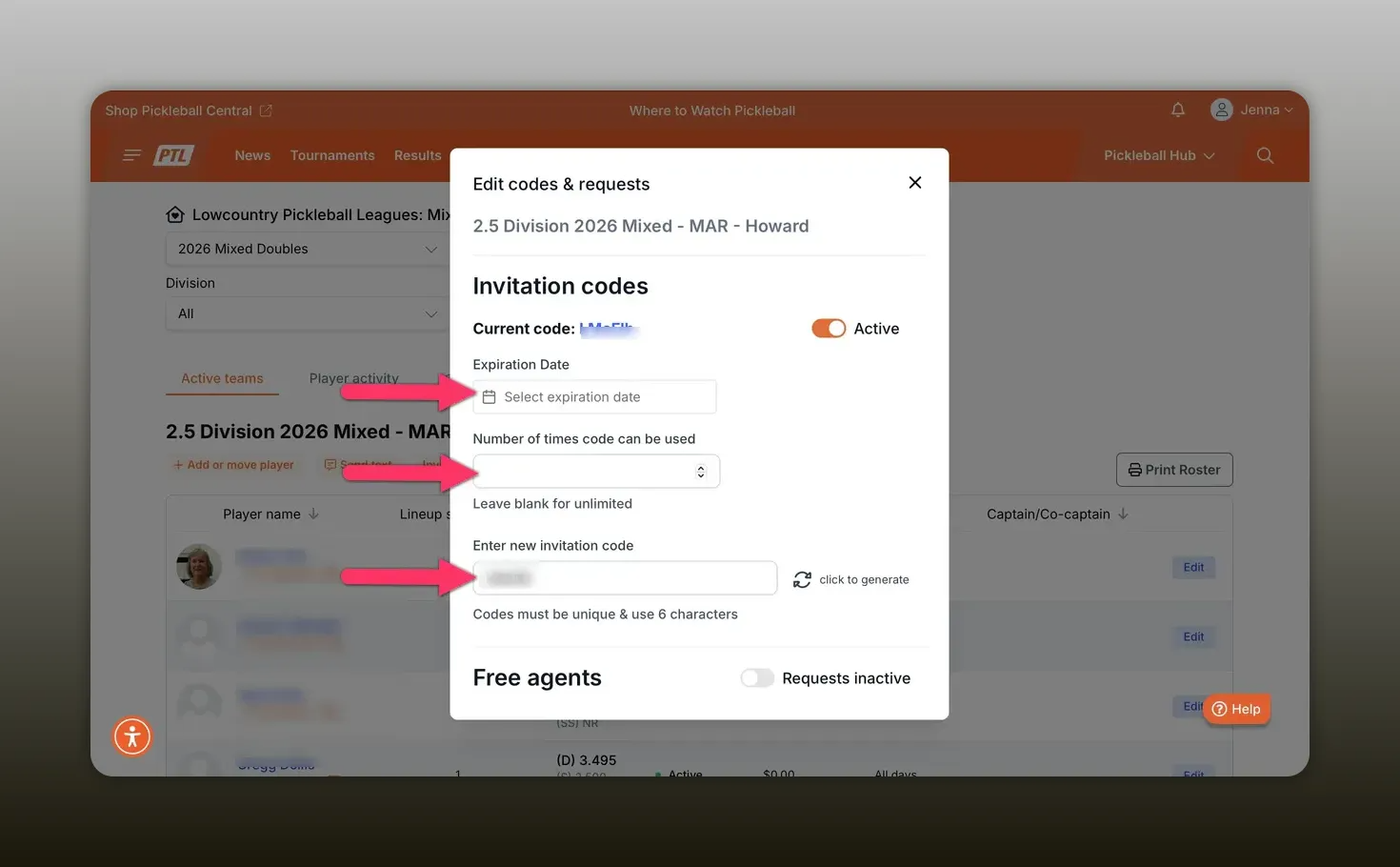
- Ensure the invite code is set to Active and note the current code.
- Optionally set an expiration date, limit the number of uses, or change the code altogether.
- If you want to allow free agents to request to join your team, toggle the Requests option on.
When free agents request to join, you receive an email notification with a direct link to the Player Activities section of your Team Dashboard. From there you can approve or deny requests. If you prefer that players only join using a specific invite code, leave the requests toggle set to Inactive.
Best Practices for Captains
- Confirm email addresses before adding players to avoid sending invites to the wrong person.
- Use invite codes for open recruitment and social sharing; set expirations and usage limits to control access.
- Monitor Player Activities regularly to approve free agent requests and track pending invites.
- Communicate expectations with players after inviting them—confirm practice attendance, divisions, and payment deadlines.
- Keep one captain responsible for roster changes to prevent duplicate invites or conflicting additions.
Troubleshooting Tips
- If an invite email is not received, ask the player to check spam folders and confirm the email on file.
- If an invite code appears inactive, verify the code status and expiration in the team edit screen.
- For free agent requests you cannot see, check that request notifications are enabled and review Player Activities on the Team Dashboard.
- If a player cannot complete registration during sign-up, confirm they have created an account and are using the correct invite code or that you add them directly via Add Players.
Next Steps and Support
Use the method that best fits your situation: team registration when forming a roster at signup, direct adds for known teammates, and invite codes for recruitment. Save changes after editing invite codes or request settings so they take effect immediately.
Registering Players — Quick Reference
- Method 1 — Team Registration
- From the league page click Register Now.
- Choose Team Registration, fill in team name and division.
- Add players while completing the registration prompts.
- Complete payment to finish registration.
- Access Team Dashboard (Method 2 & 3)
- Go to pickleballteamleagues.com and select your league.
- Click My Dashboard then choose Team Dashboard.
- Method 2 — Add or Move Player (Direct)
- In Team Dashboard click Add or Move Player.
- Scroll to the Add button and choose Add Players.
- Search by last name and add the player.
- Action: Player receives email invite to accept or decline.
- Method 3 — Invite Code
- Click the edit pencil next to your team to open invite settings.
- Set code to Active; note the code value.
- Optional: set an expiration date, usage limit, or change the code.
- To allow free agents to request joining, toggle Requests to active.
- Action: Free agent requests appear in Player Activities for approval or denial.
- Important Notes
- Always save changes after editing invite code or request settings.
- Only allow one person to manage roster changes to avoid duplicates.
- Check the Player Activities section for pending invites and free agent requests.
- Common Issues & Fixes
- Invite not received: confirm email address and check spam.
- Invite code not working: verify code is active and not expired.
- Unable to find player: ensure player has an account, or invite them via code or during registration.
Was this article helpful?
That’s Great!
Thank you for your feedback
Sorry! We couldn't be helpful
Thank you for your feedback
Feedback sent
We appreciate your effort and will try to fix the article