TABLE OF CONTENTS
Getting to Messages
PickleballBrackets.com has a built in, fully customizable, messaging system that allows Tournament Directors to create messages that can be sent to players based on their registration status and/or their event selection.
In your tournament menu, click on "Messages"

Main Message Screen
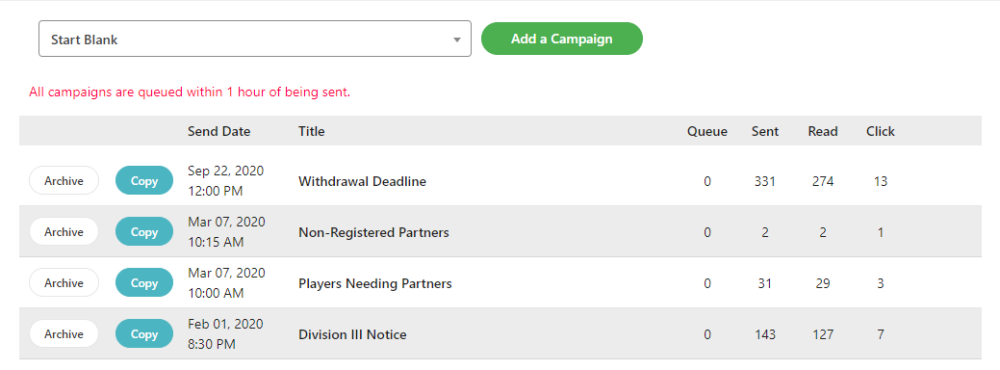
Global messages are referred to as Campaigns since they can be utilized for marketing as well as information purposes. From this page you may:
- Add a new Campaign
- Edit a Campaign that you are currently developing.
- Archive an old Campaign.
- Copy a completed Campaign to serve as a template for a new one.
Adding a Campaign
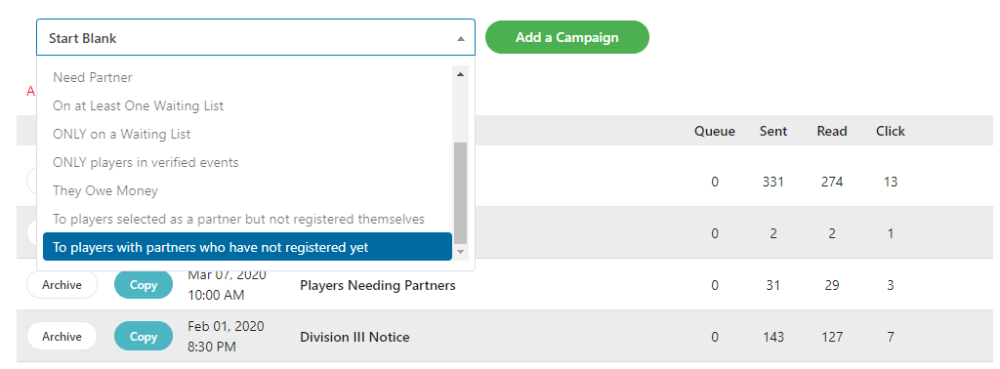
Two options are available if you choose to add a brand new Campaign.
- You may add a blank campaign and create all of the campaign parameters and format from scratch.
- You may select a campaign from the drop down menu. This will generate a campaign template featuring two items:
- A default selection criteria that will direct the message to a specified category of players.
- A sample message that may be modified as needed.
Message Filters
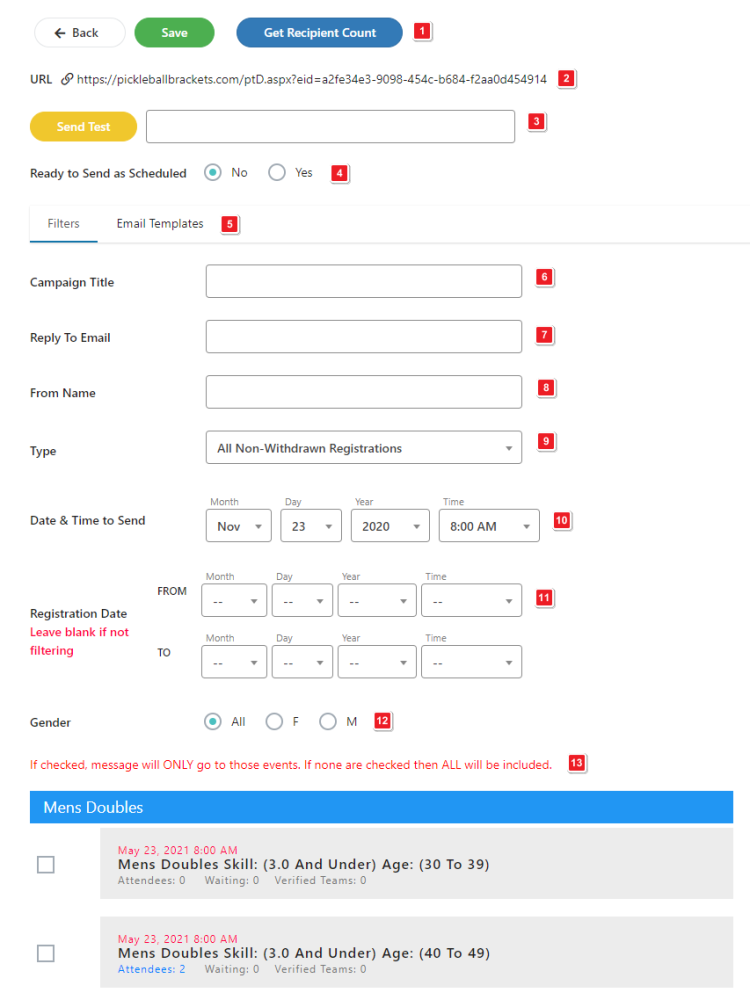
- Get Recipient Count – Click this button to see the number of players who will receive this message based on the current, active filter.
- URL -Click to copy the tournament URL. Paste this into your browser to view the tournament on PickleballBrackets.com. This allows you to view all tournament information even if it is not currently active.
- Send Test – Type an email address here and click the yellow button to send a test copy of the campaign message to anyone.
- Ready to Send as Schedule – Switch this to Yes when you are ready to send your campaign message.
- Filters/Email Templates – Use these buttons to select what to work on.
Filters – This is the filter page. Filters control who will receive the message.
Email Template – The format and message. Working with the email template will be covered in the next section of this manual.
- Campaign Title – Give this campaign a title that has meaning for you. For example, a message about available lodging might be titled “Hotel Partners.”
- Reply to Email – This is the email address that players may respond to.
- From Name – The responsible person sending the email or authorizing it to be sent.
- Type – There are a number of built in filters that can be selected here. Use the drop down menu to limit the Campaign to a selected group of players.
- Date and Time to Send – Messages scheduled to send less than an hour from the current time, will be queued immediately.
- Registration Date – Use a date range to limit the campaign to only those who registered before, after or between specific dates.
- Gender – Use this if you wish to send the message only to Men or Women. The default is to send to all players.
- Select Events – Check your event choices below if you wish to send your message only to players in specific events. If no events are check, the message will be sent to players in every event.

Message Templates
Your choice of Message Filter when you add your campaign will determine the template that the system will create for you to start with.
- Start Blank – This choice creates a blank document that you will be able to format in a manner similar to any word processor.
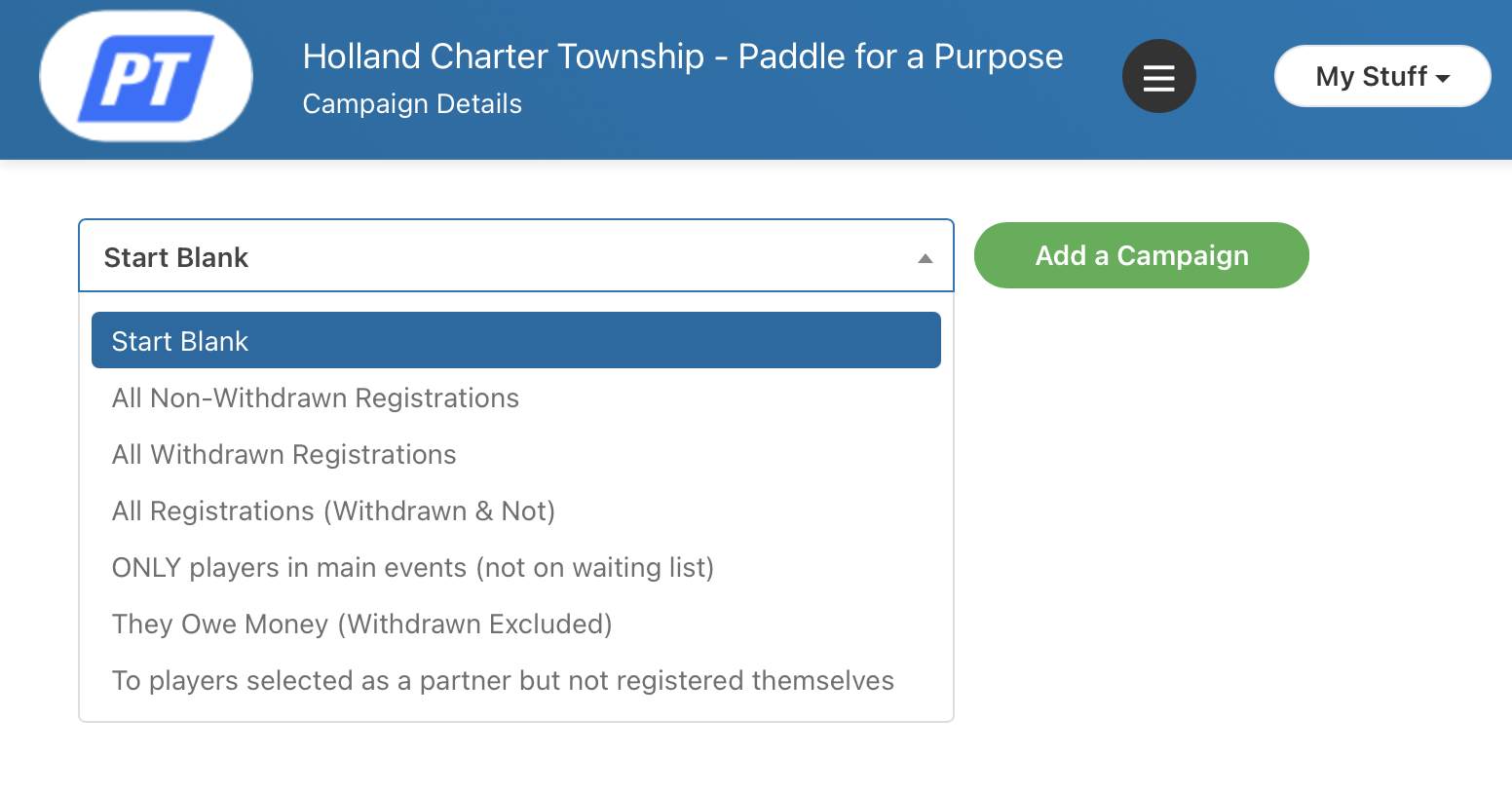
2. Any Other Choice – This will start you off with a sample document that you can modify as needed. Each choice creates its own sample. Please see this help doc for assistance in how to use the Messaging Templates feature.
Was this article helpful?
That’s Great!
Thank you for your feedback
Sorry! We couldn't be helpful
Thank you for your feedback
Feedback sent
We appreciate your effort and will try to fix the article