TABLE OF CONTENTS
These are the situations where Tournament Directors would have to add players.
- There is no online registration. All players would then have to be added by the Tournament Director.
- Before registration opens or after it closes online, Tournament Directors have the ability to add players manually.
In either case, a player MUST have a profile, as they must sign our terms and conditions.
Adding New Attendee:
Head to your attendee screen by using the tournament menu, then "attendee." Click on the green "add new attendee" button: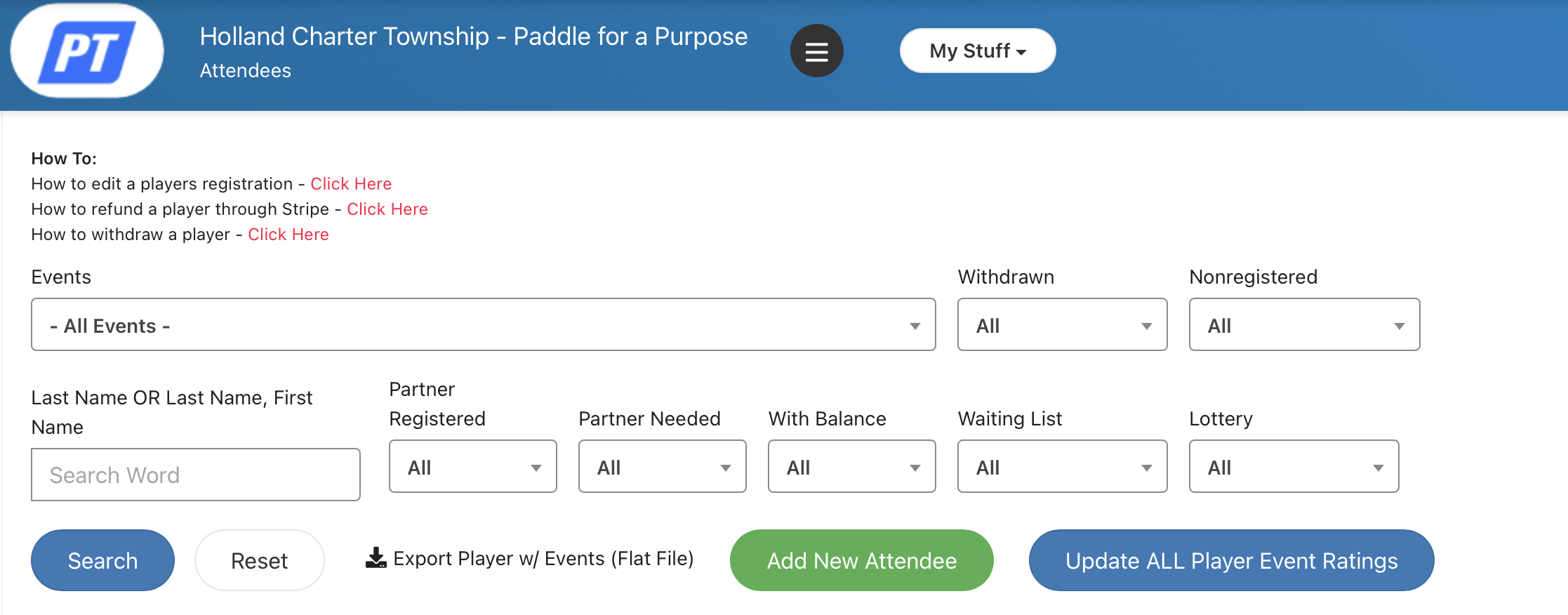
Player Search:
Search for the player by last name, email or phone number (be sure you have this information ahead of time).
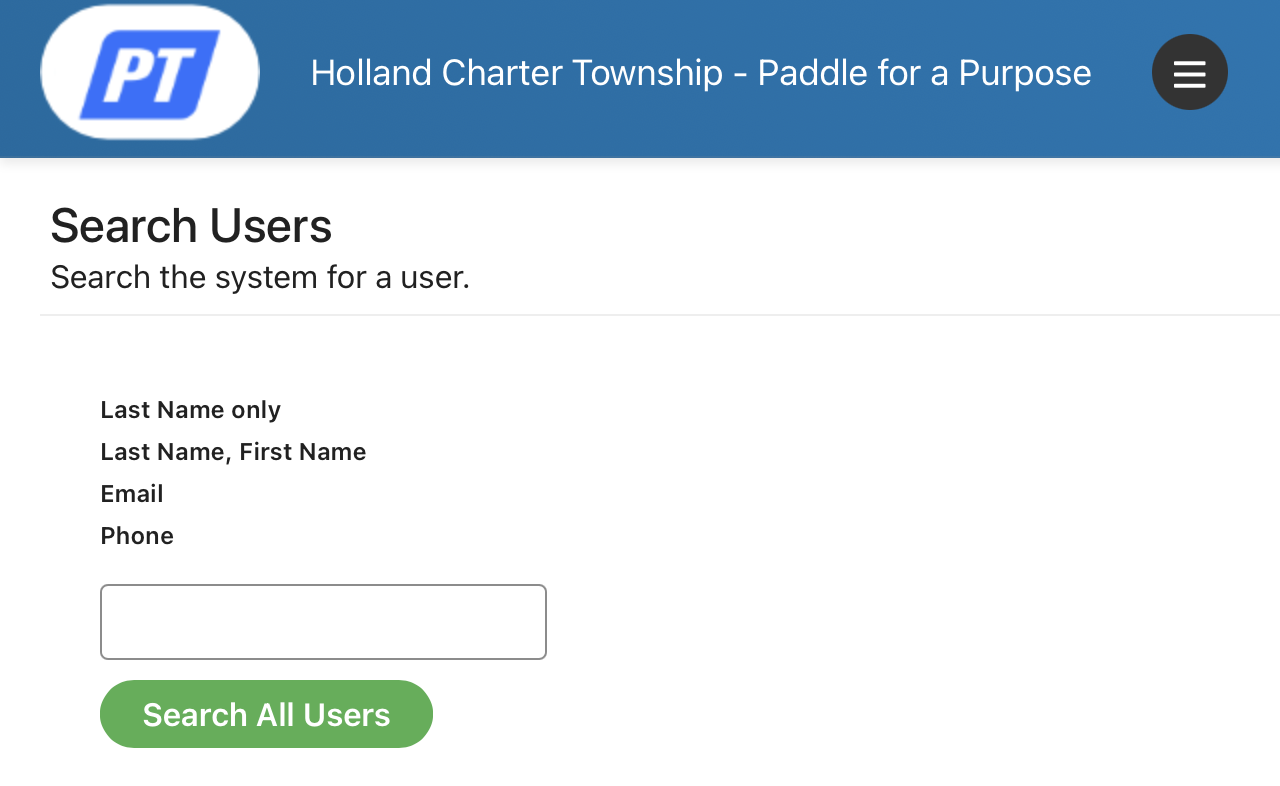
The search results should show people with your name search:
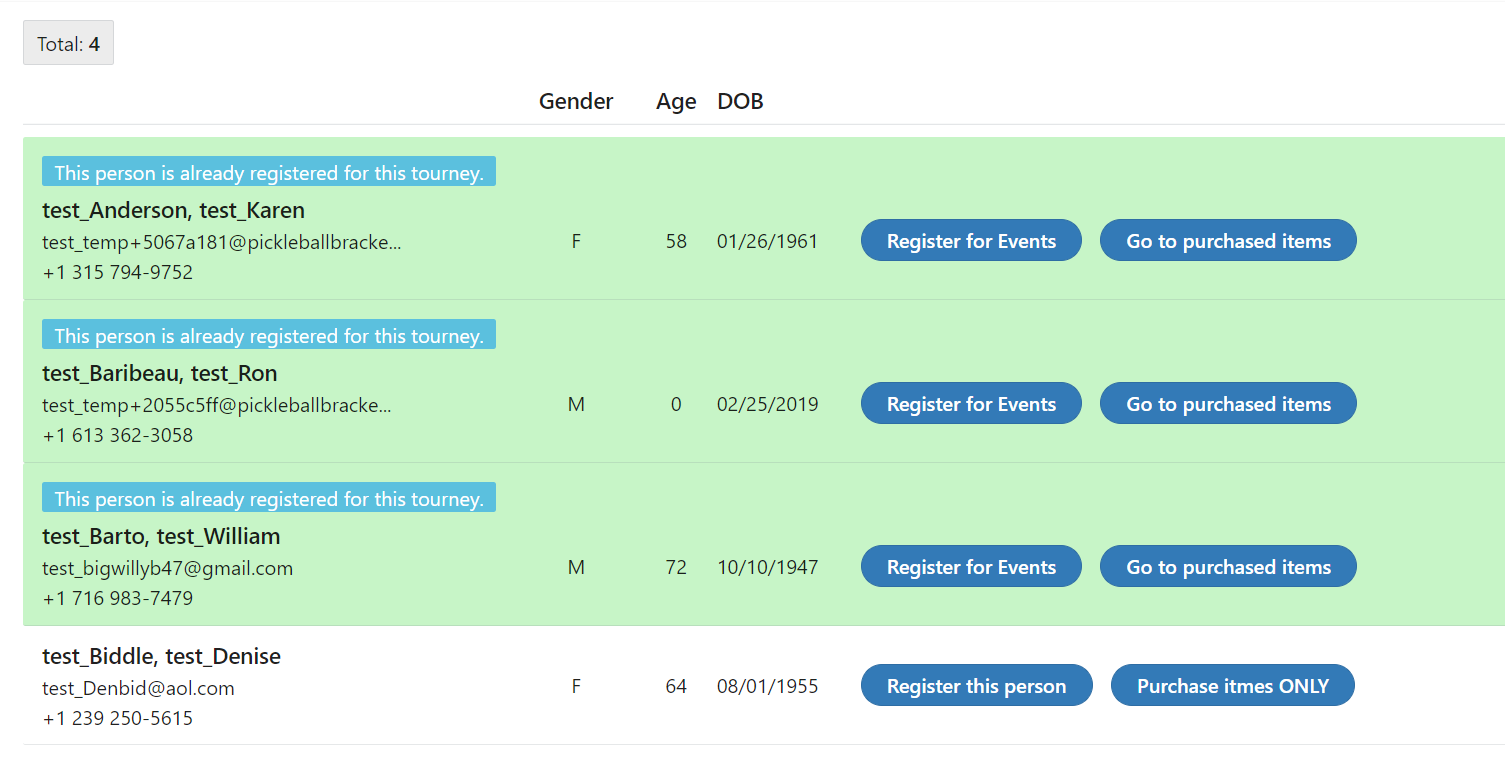
If the player you are trying to enter into the tournament is already registered, their registration will be highlighted in green and you will be able to edit their registration if necessary.
Non registered players will not be highlighted. Click on the Register This Person button to sign them up.
Selecting Events:
Event selection is the next step in the process of adding a player to the tournament.
The screen displays the basic information about the player, including gender and playing age, at the top.
The registration date is automatically generated when attendees register themselves. When a tournament director enters a registration they can select a registration date. By default the current date is selected. This feature is available for times when a paper registration is submitted and entered afterward and you wish to record the actual date that the registration was sent.
Only the events that this player is eligible for will display on the screen. Select events by using the drop down menu to switch from Unselected to Selected for the events the player is entering. If an event is full, that fact will be shown and the Tournament Director will be able to put the player on the waiting list.
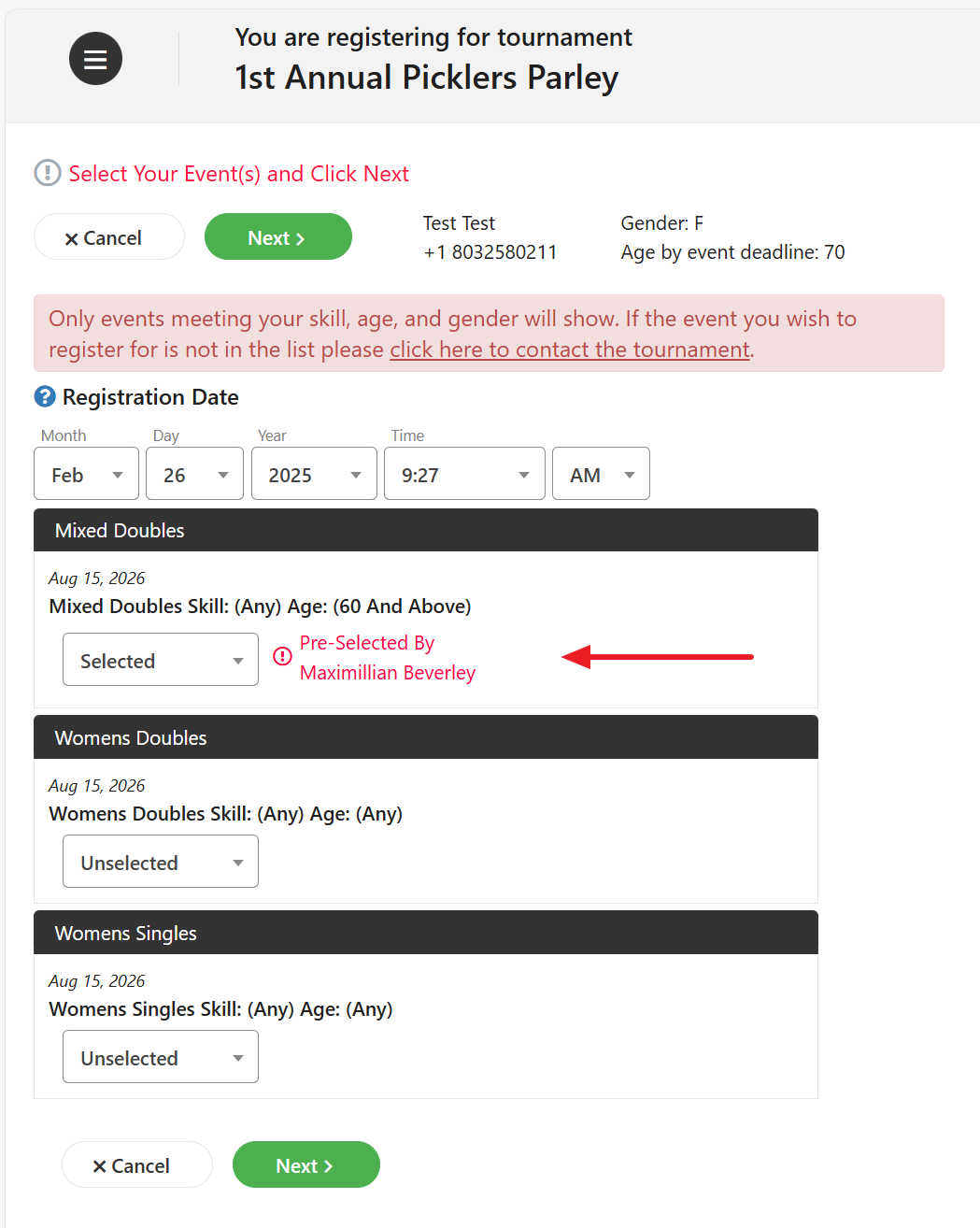
If a player has been selected as a partner by someone else, the partner name will show and the default on the selection menu for that event will be Selected instead of Unselected.
Choose the events for this player and hit the green Next button to continue.
Searching for a Partner
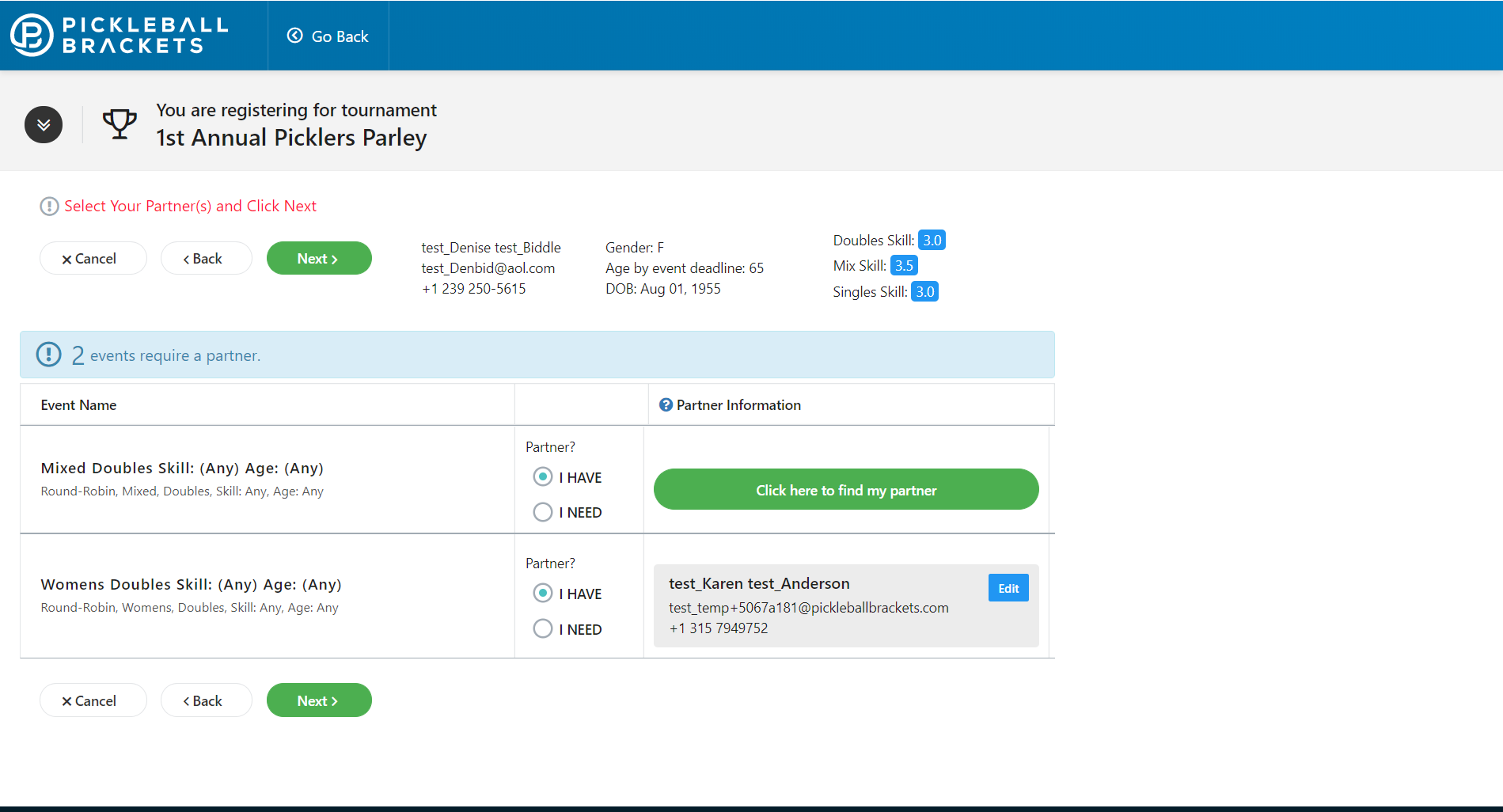
If a partner is needed for any event, this screen will come up after you choose the player events.
In this case, a partner is needed for two of the events. For Women’s Doubles, a partner was pre-selected, so her information is shown and a partner search is not required. Click the blue Editbutton to change that partner.
For other events that require a partner, check I HAVE if the player has named a partner or I NEEDif the player is registering without a named partner. Click the green button to find the named partner. Why search first? If the person already exists in our system, the player selection process is faster if you look for them first. If the player is not already in the system, you will be able to enter them manually.
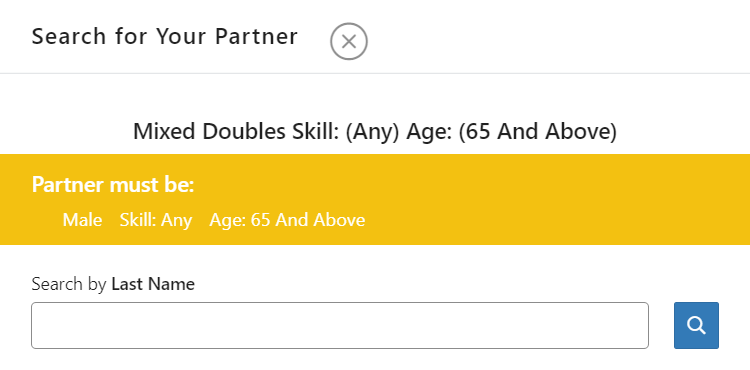
This box will appear to allow you to search for the partner.
Notice that it lists the gender, skill level and age qualifications needed for a match. Type the partner last name or last name, first name and click the blue search icon.
The search results will then be shown.
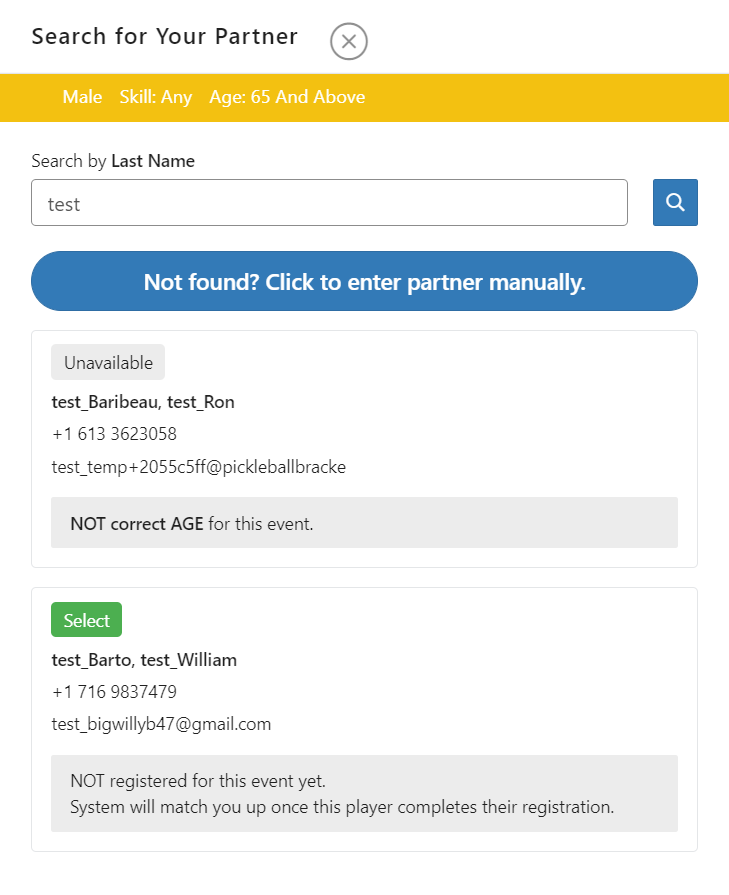
If you search by last name only, any individual with the same last name as the search name will be shown. Players who are not eligible to be partnered up will show with an “Unavailable” notice above their name and the reason why they are unavailable below their name. Players who are eligible will have a “Select” button above their name.
Checkout Screen
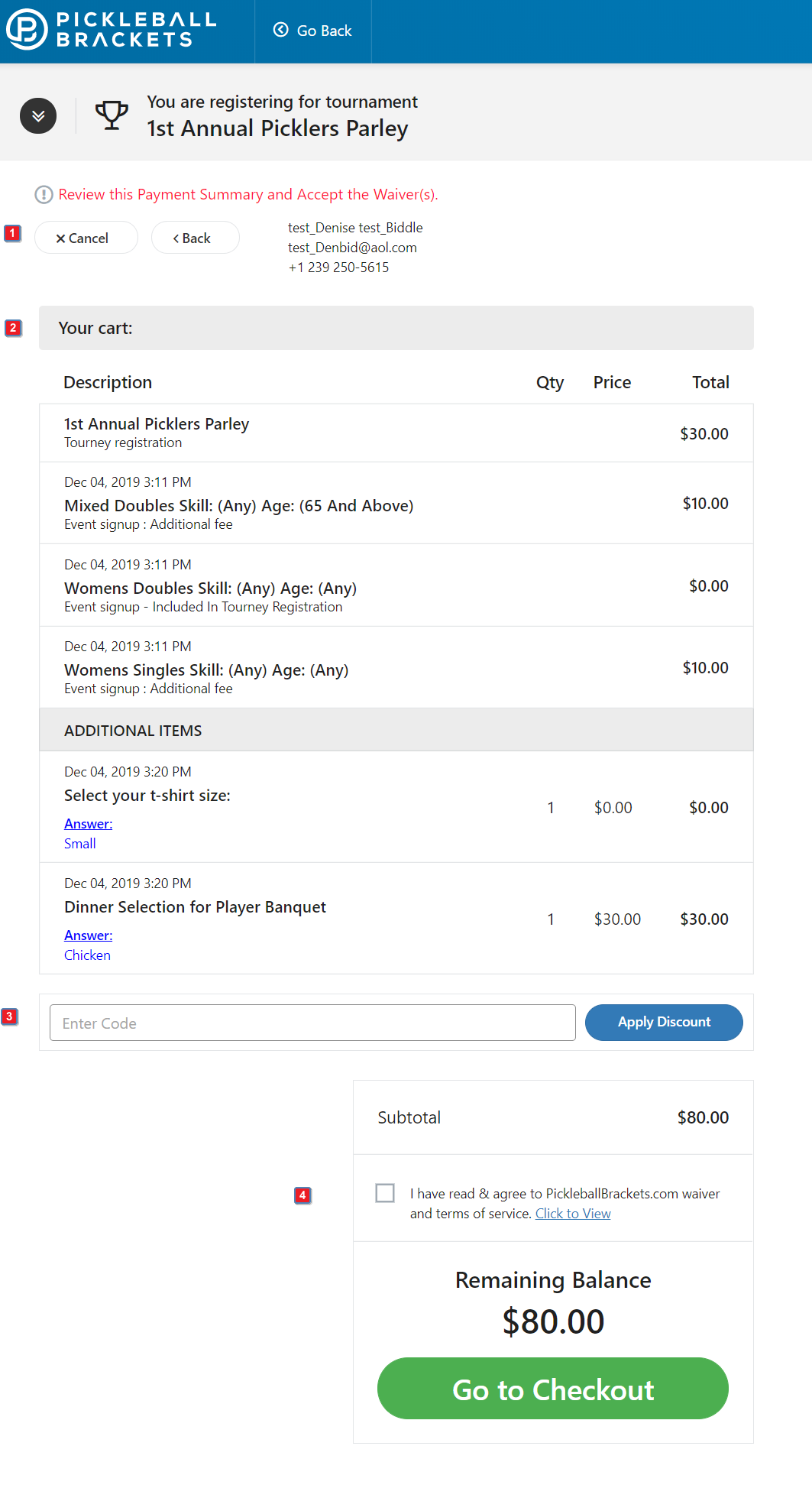
This is a summary of events, other items and payments for this registration.
- Cancel or Back – Allows you to make changes or cancel this registration completely.
- Your Cart – Shows a detailed description of all of the items and their associated costs. This tournament had a $30 entry fee that included one event. Additional events were $10 each. The cart shows that information.
- Discount Code – If this player is eligible for a discount, enter the code here and click Apply Discount. That will re-calculate the subtotal and add a line for any remaining balance.
- Waiver(s) – The waiver box must be checked to proceed. If the tournament has its own waiver, there will be a box for that. Each waiver has a Click to View link.
Click the Go to Checkout button to proceed to the Payment Page.
Payments
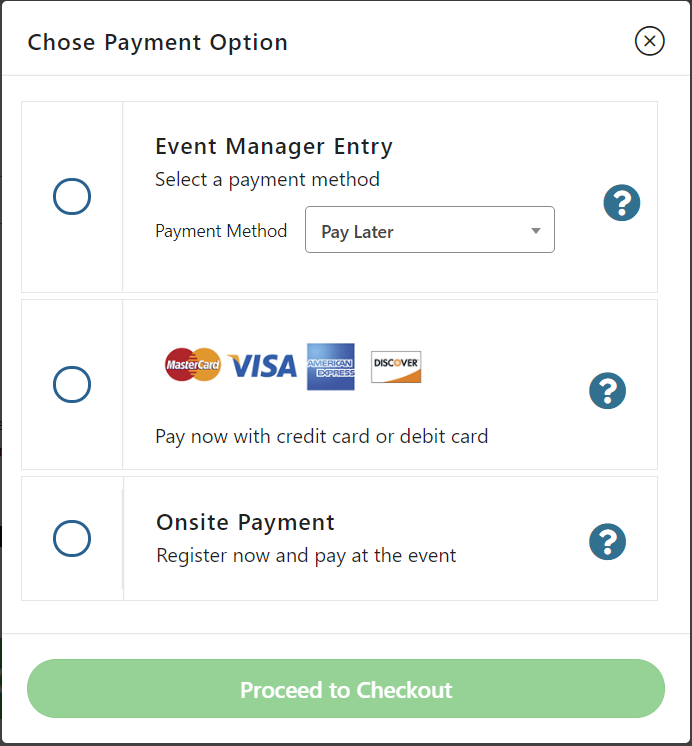
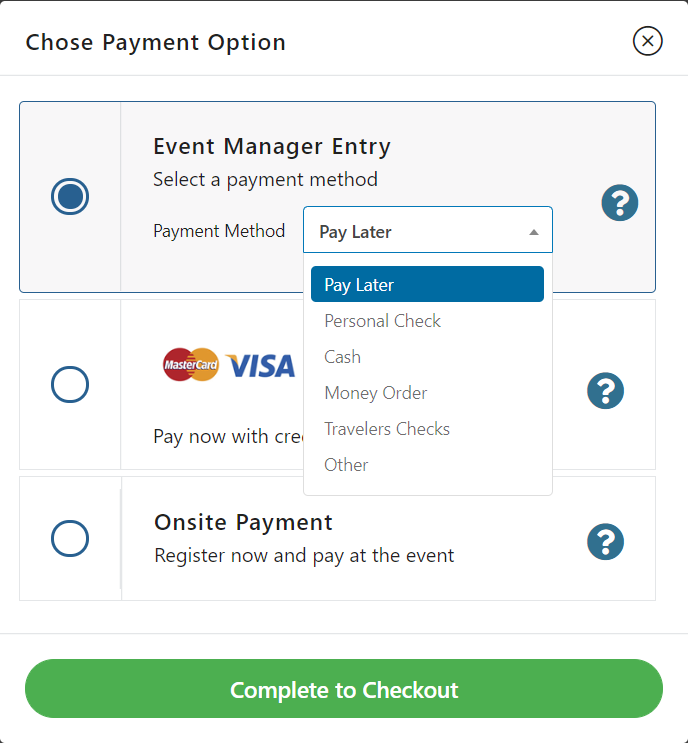

- Event Manager Entry – These include all of the options on the drop down menu on the right. Most commonly chosen is Pay Later - as this will allow the player to sign into their account and pay directly. The player logs into their account, and can go to the alert bell next to their name (upper right corner), or go directly to the tournament page to find a "pay balance" button. They will follow the prompts to complete their payment.
- Credit/Debit Card – Select this if you have all of the credit card information or are registering someone over the phone.
- Onsite Payment – This will allow the player to pay at the event. The amount owed will show on the screen when they check in for the tournament.
- Mail In Payment – Not active for this tournament. This would print a bill to be returned with a check to the tournament director.
Select the payment option and click the Complete to Checkout button. A copy of the receipt is automatically sent to the player. If partners were chosen, they will receive notice that the player has registered and selected them.
Was this article helpful?
That’s Great!
Thank you for your feedback
Sorry! We couldn't be helpful
Thank you for your feedback
Feedback sent
We appreciate your effort and will try to fix the article