After your tournament is created, you may wonder how many players you can hold for your tournament. The Simulator is a fantastic tool to assist you in projecting the size of your tournament so that it runs smoothly and within your selected time frame.
Use the video below to watch the steps on how to use the simulator, or you can read the steps below the video:
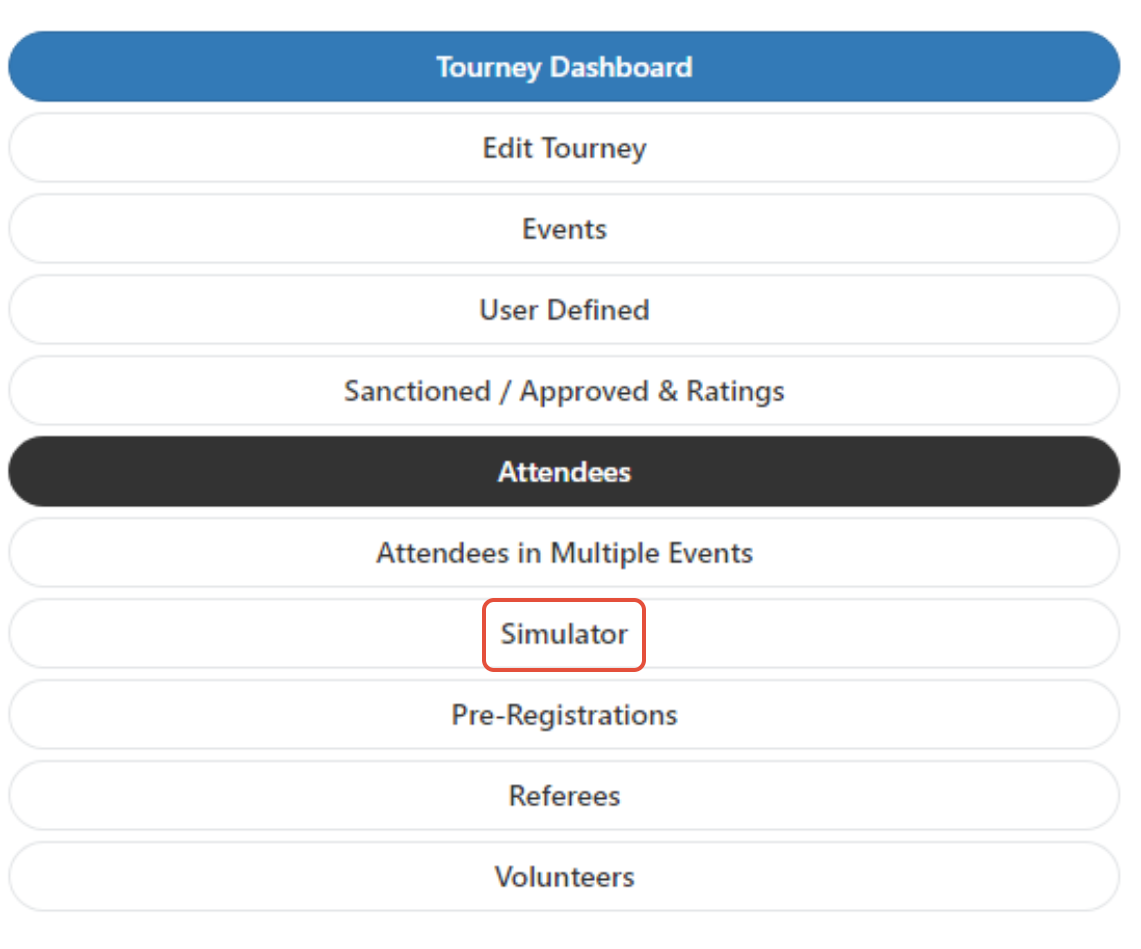
After you have created the events for your tournament, use the 3-line menu and visit the "Simulator" tab. If you have not already entered the number of courts you will use, the software will ask you to indicate this before allowing you to access the Simulator. Enter the number of courts and then visit the 3-line menu and select Simulator again.
You will first see that each projection is separated out by tournament day. Be sure the tournament day you are wanting to test is listed in the "Event Date" box:

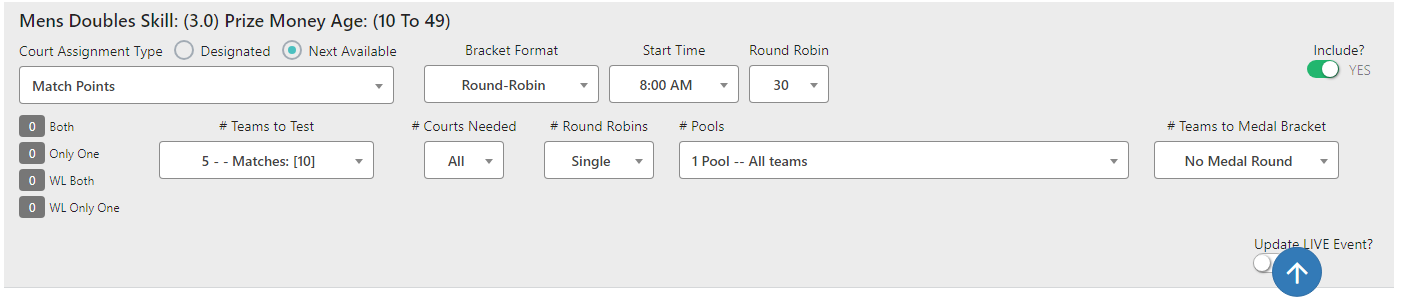
For each event, you will see multiple options. You can choose how you want the event setup to test by selecting the event format, time the matches will take, # of teams to test, if the event has pools or medal rounds, and more. If your registration period is currently open, and you want to test out where you are at with your current registrations, use the "Both, only one, WL, Both and WL Only One" options toward the left side of the screen. Both means how many players are entered into the event, only one means only one of the partners is registered, WL BOTH means both teammates are on a waitlist, and the last option is if only one team member is on the waitlist. If your registration is closed and you just want to test tournament capacity, feel free to guesstimate how many teams to test and you can always narrow it down from there.
You will see in the below example; we are using a 5-team round robin with 30 minutes allotted per match.
Once you have selected the information you want tested for each event, use the green "Save" button at the top, then the "View Schedule" button to see what the projection looks like.

You will now see that the system has run a projection for the 5 team round robin that will use 2 courts (5 matches each court) to run the event completely. It is set to begin at 8:00am and finish around 10:30pm. This time is based on the projection you place in the Simulator.
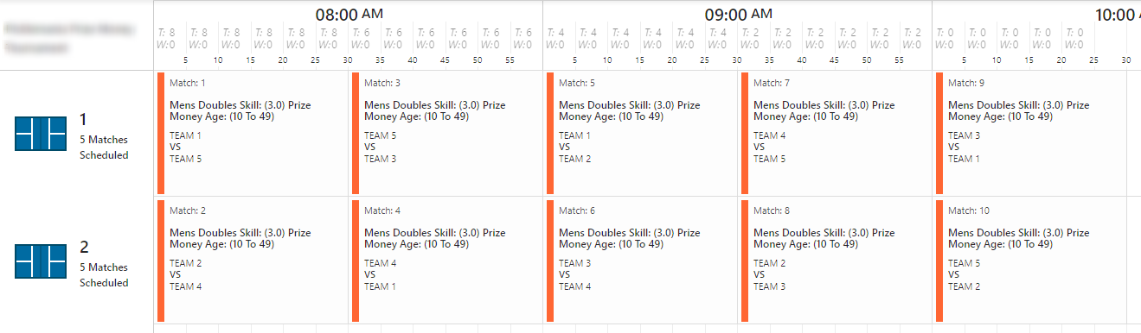
Doing this for every event in your day and running the projection will help you see how long the events can take with the specific number of players in them. Once you have found the numbers you like, you can input those maximums into the individual events (Events, then Edit Event OR go to the events screen and click "edit list" at the top to edit the events all at the same time).
This is a great way to test out max capacity and also as you get close to your tournament day, if you have the time to add more teams to an event.
Was this article helpful?
That’s Great!
Thank you for your feedback
Sorry! We couldn't be helpful
Thank you for your feedback
Feedback sent
We appreciate your effort and will try to fix the article